My till right now
In FoodEatUp, for my establishment [number], which tills are open and what do they say?
What you getOpen sessions per register, with the X report when there is only one.
Tools used : get_pos_session
 Finance · Journal de caisse
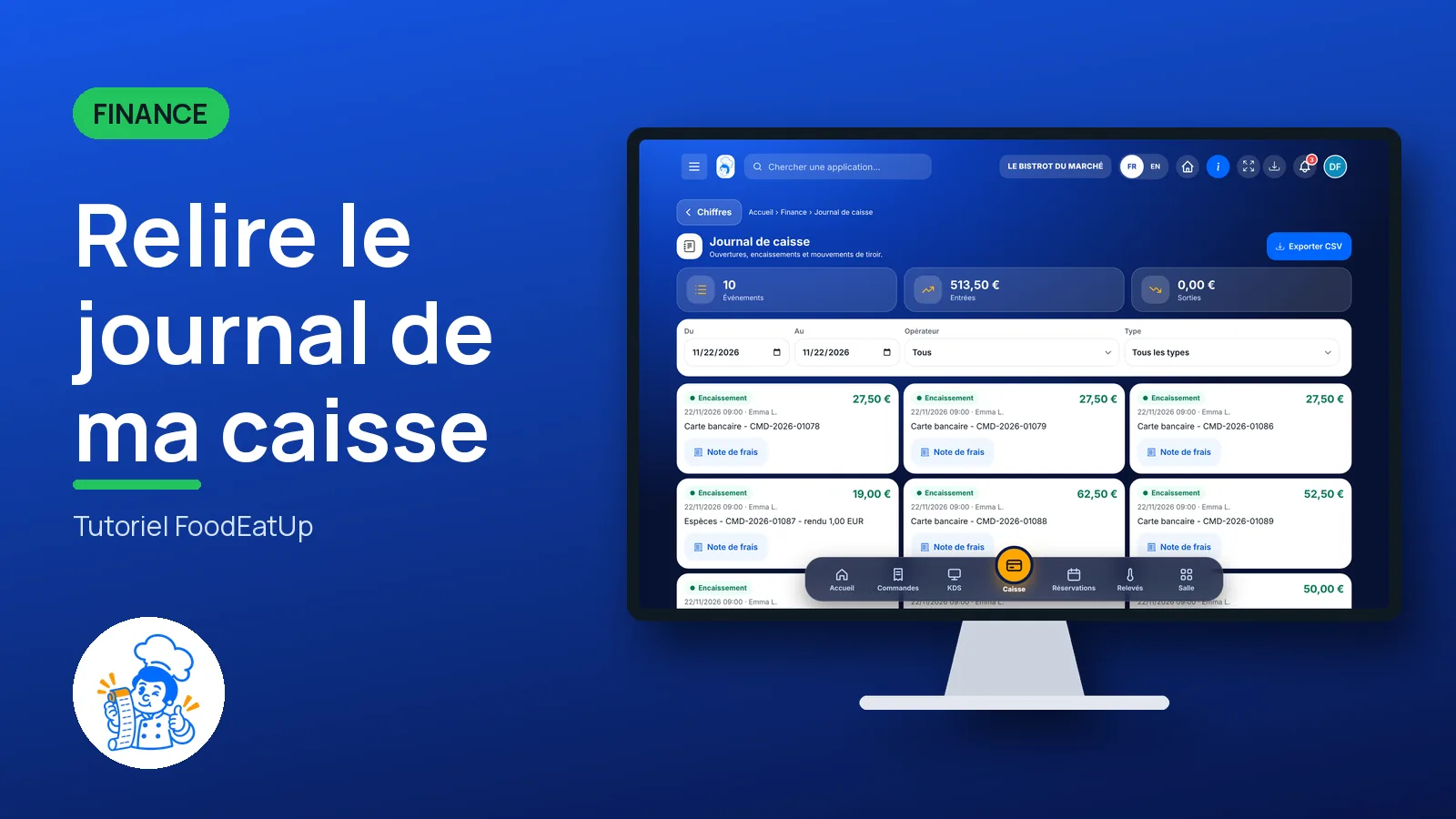
The till journal lists every action on your tills: openings, payments, credit notes, cash added and taken out, cancellations and closures. You filter by day, operator or type, and you export.
 Patron / gérant
 Directeur
 Responsable de salle
The owner always has access. See what each role sees →
A computer or a tablet to filter and export the journal.
The real software screens, as they appear on each device.
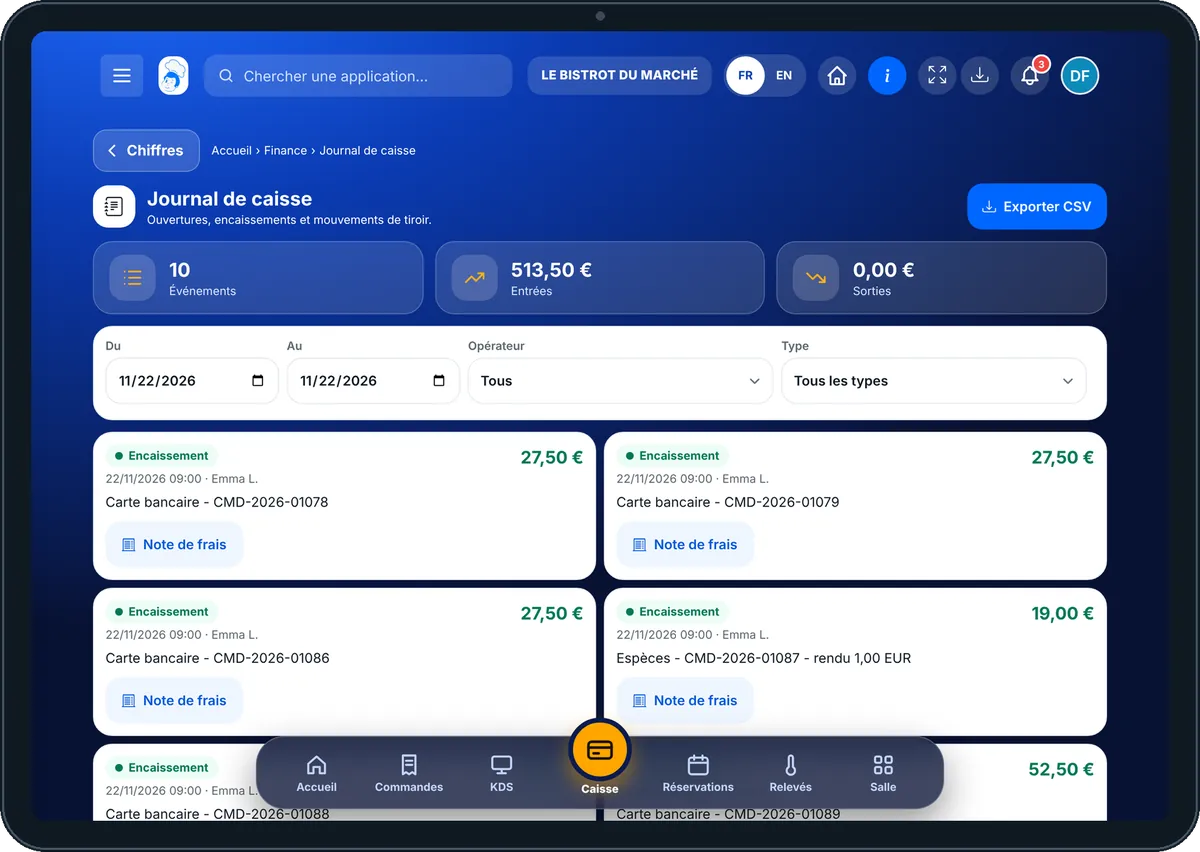
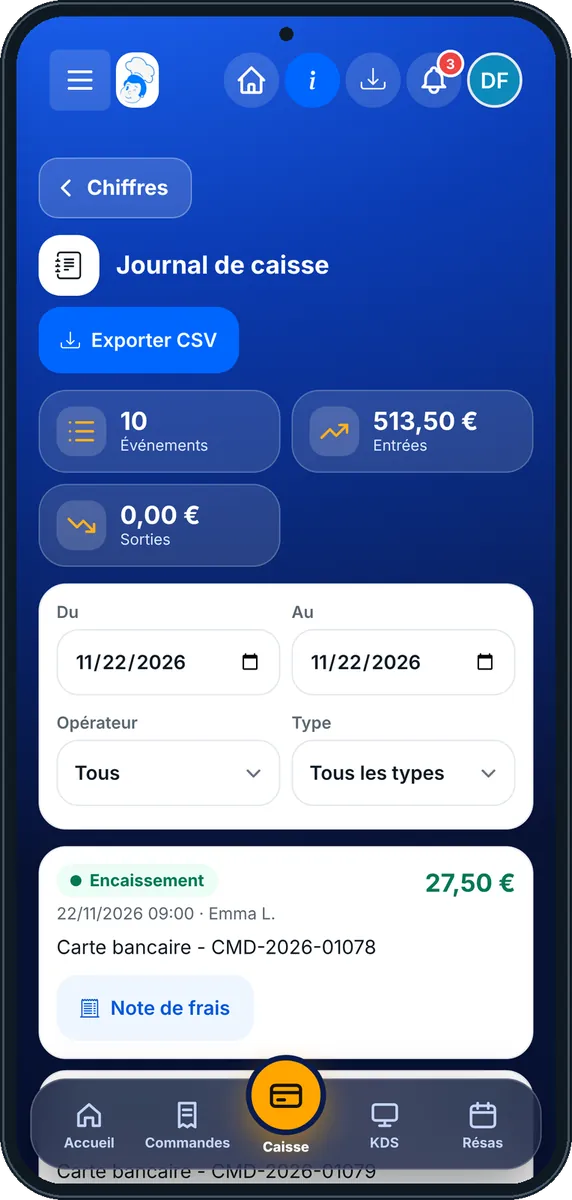
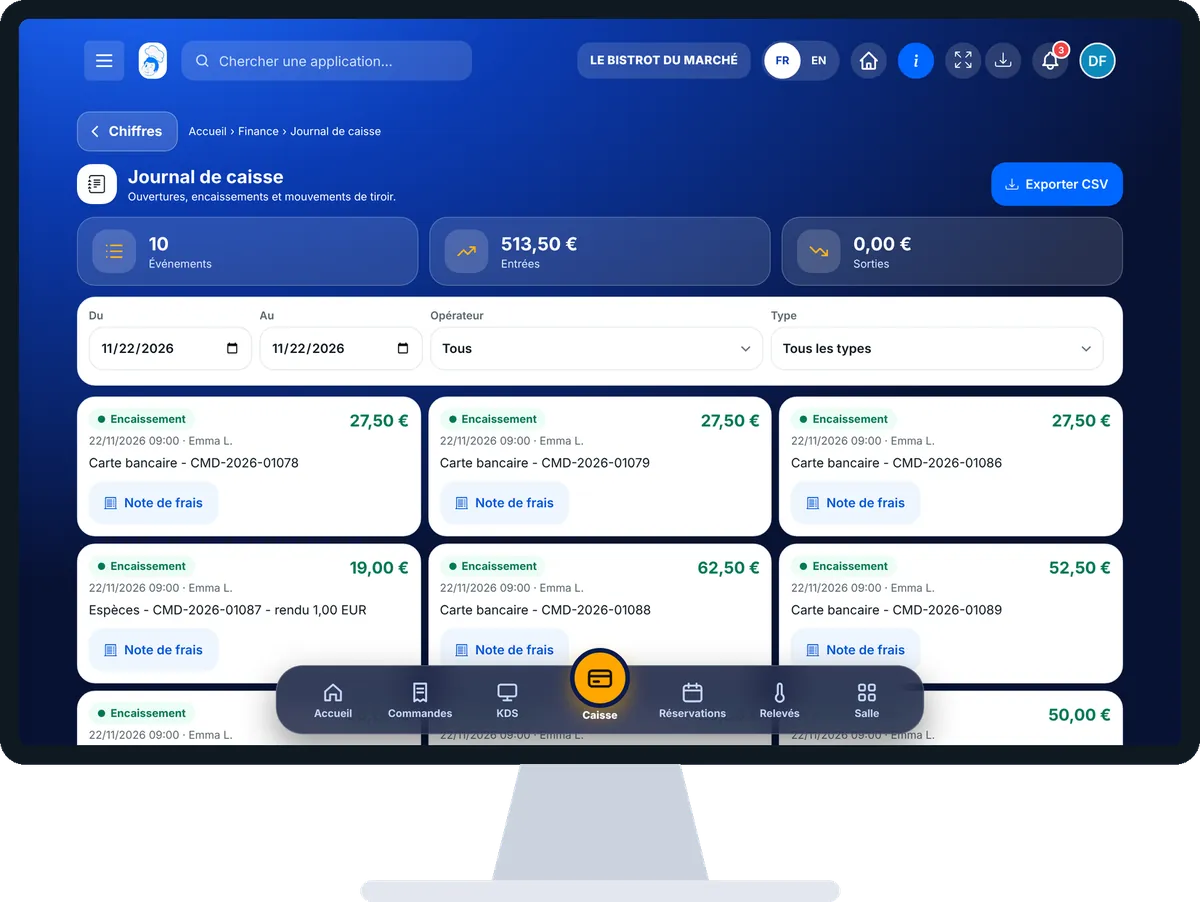
Review my till journal : 4 steps, with the real software screens.
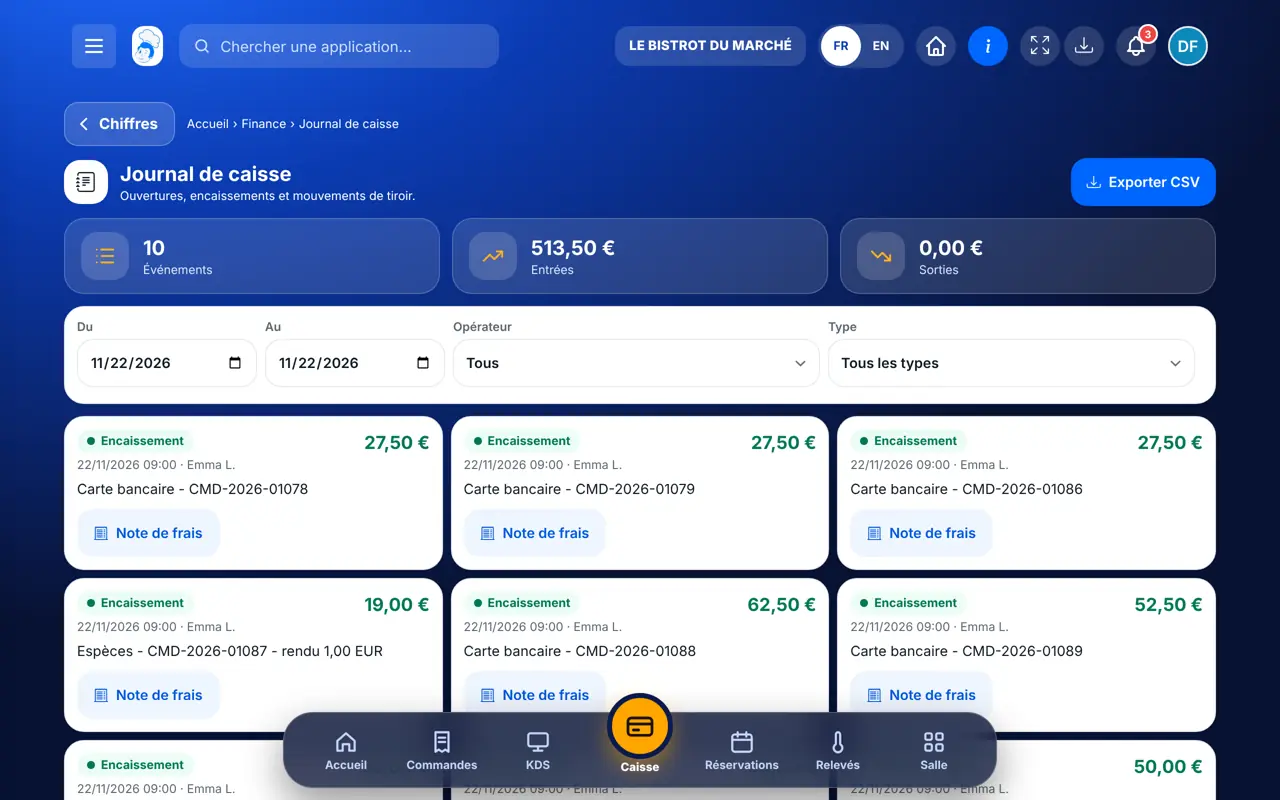
From the home screen, open Finance then “Journal de caisse”. At the top: the number of events, money in and money out.
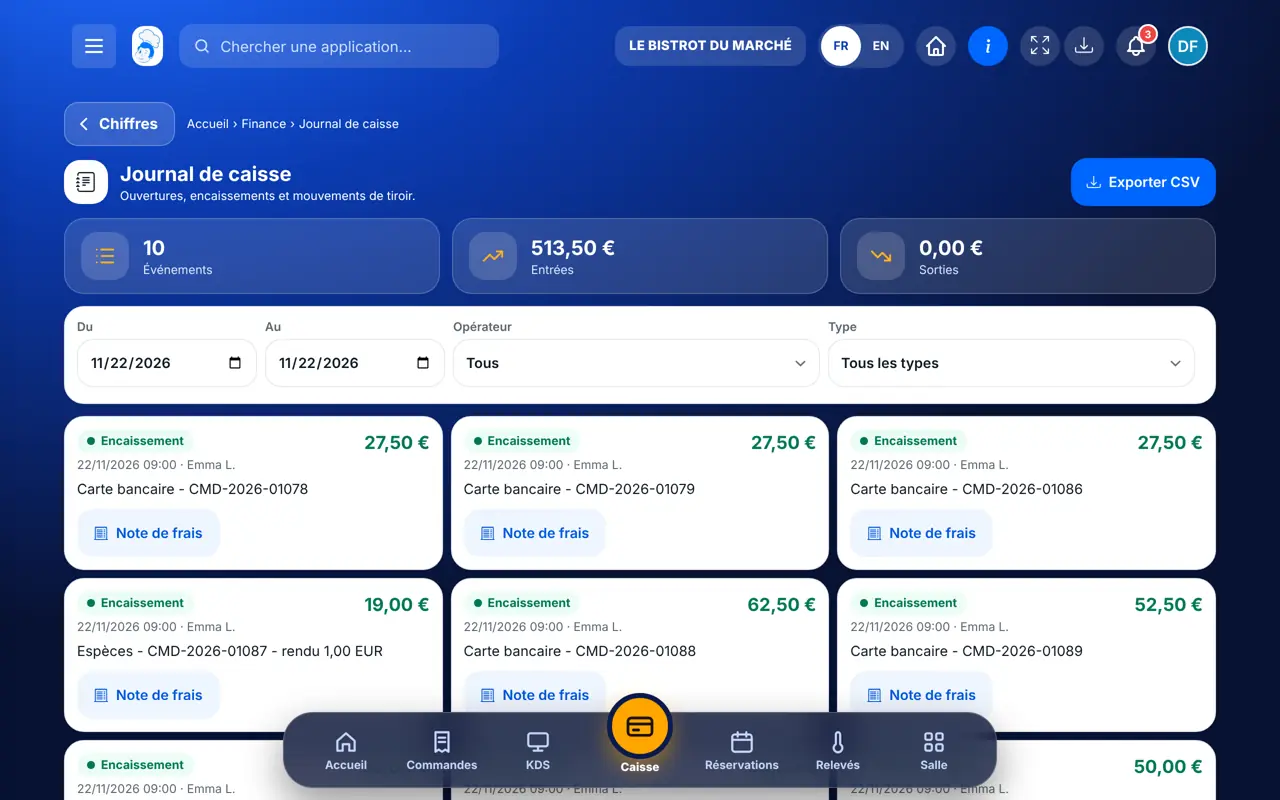
Choose “Du” and “Au”, an operator and a type: opening, payment, credit note, cash in, cash out, cancellation, closure.
Each line gives the type, the time, the operator and the amount.
Tap “Exporter CSV”: the filtered journal goes into a file for your accountant.
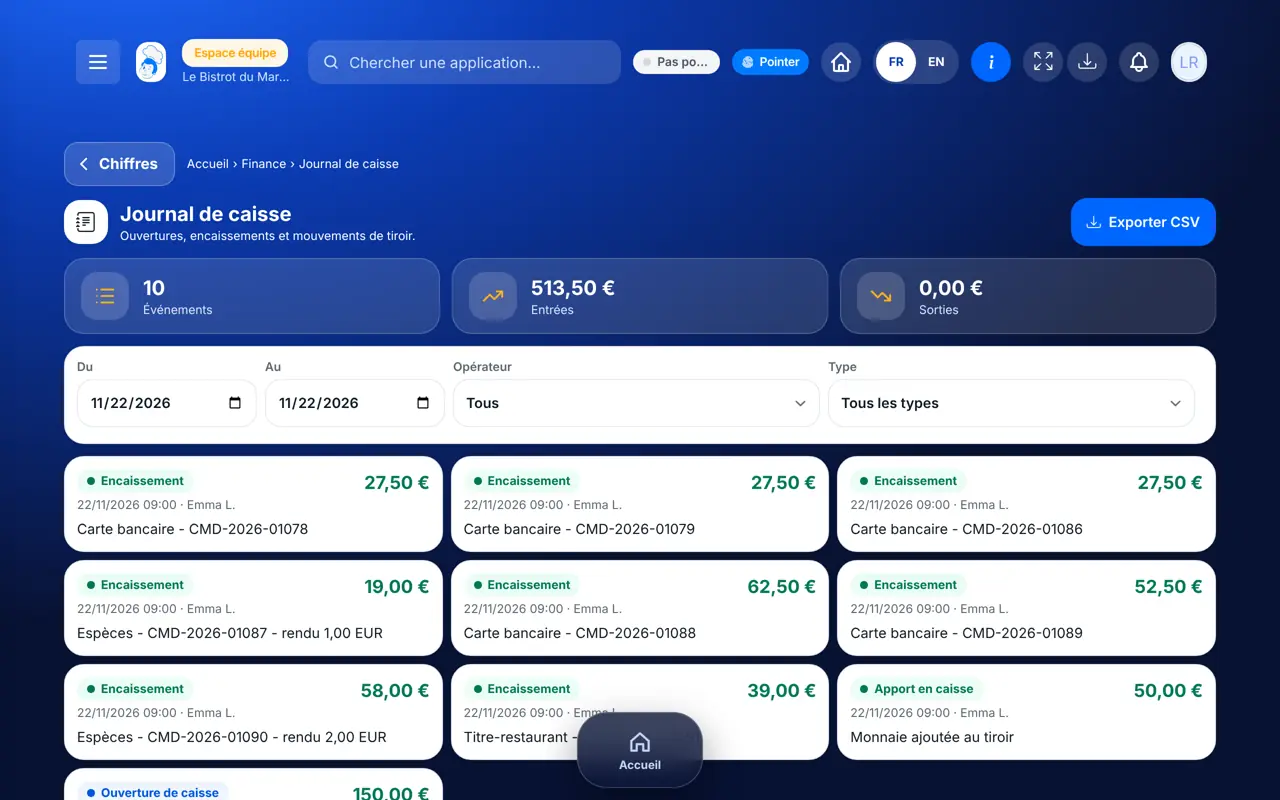
The day’s journal: the till opening, €50 of cash added, then each payment with its time and operator.
Reviews the journal of all their tills and exports it.
With the right to view the financial dashboard, reviews the same journal.
Claude, ChatGPT or Mistral’s Le Chat, connected to FoodEatUp. Copy the request and replace your establishment number.
In FoodEatUp, for my establishment [number], which tills are open and what do they say?
What you getOpen sessions per register, with the X report when there is only one.
Tools used : get_pos_session
In FoodEatUp, for my establishment [number], give me the report of till session [session number].
What you getTurnover, average ticket, breakdown by payment method and operator, and VAT.
Tools used : get_pos_report
In FoodEatUp, for my establishment [number], give me the consolidated Z for [date].
What you getThe total taken across all tills, each register with its gap, and VAT.
Tools used : get_consolidated_pos_report
Each till action has its time and operator.
The journal reads the records, it recomputes nothing.
Training mode is marked, never mixed in.
The filtered journal as CSV.
A gap at the evening count? Filter the day and the “Sortie de caisse” type: you quickly find the forgotten movement.
In FoodEatUp, one action triggers others. Here are the screens that work with this one.
No. It reads the records saved by the till; it has no field to edit.
Yes, marked “École”: they stay visible but outside the accounts.
The journal lines matching your filters (dates, operator, type), in a CSV file.
Send it to your team, your partner or your accountant. The image below appears in the message.
Claude, ChatGPT or Le Chat read this tutorial and explain it to you. Connected to FoodEatUp, they do it with you.
Read this FoodEatUp tutorial: https://foodeatup.com/en/academy/finance/cash-journal.md Explain it to me simply, step by step, then help me do it in my restaurant. If FoodEatUp is connected to you, do it with me and show me the preview before every change.
Type your establishment number: the link takes you straight to this screen. The number stays on this device.
Discover the till (in French) →
Répond avec les fiches du site, sans IA
Le chef cherche dans les fiches…
 Claude
 Le Chat
 ChatGPT