Aller au contenu
Head office · Central purchasing
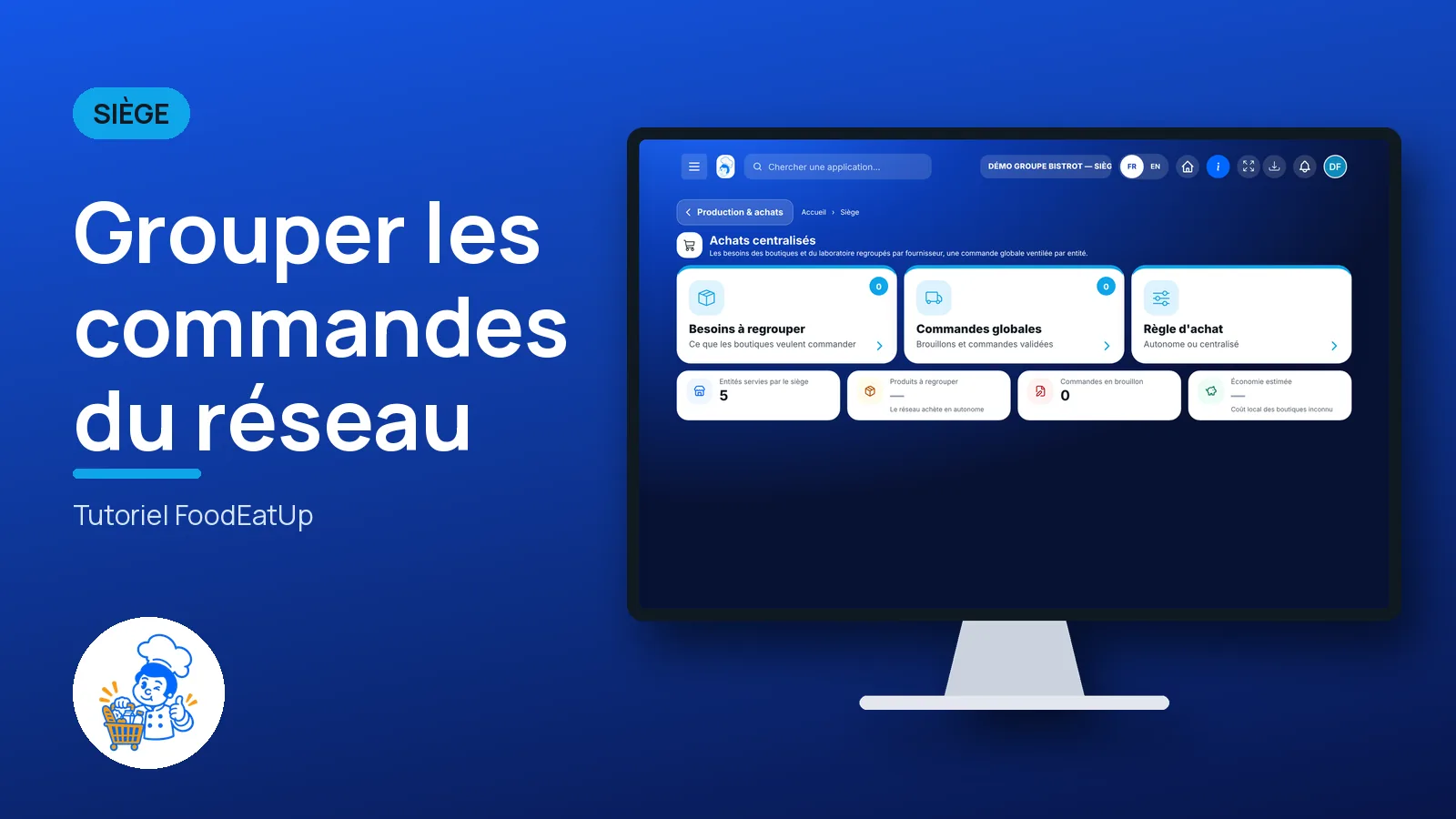
Group the network’s orders

The needs of shops and the central kitchen are grouped by supplier. The head office places one overall order, split into whole cases, and each site receives its own delivery.

  • Computer
  • 5 steps
  • Level : Advanced
Group the network’s orders : Central purchasing: shop needs grouped by supplier

Who is it for?

  • Responsable multi-sites
  • Directeur
  • Chef de cuisine
  • Animateur réseau

Roles with access

  • Gérant·e
  • Chef de cuisine
  • Barman·maid · view
  • Boutique (réseau)
  • Franchisé·e (réseau)
  • Directeur·rice d'établissement
  • Responsable siège

The owner always has access. See what each role sees →

Recommended hardware

Computer

A computer at the head office. An overall order is read line by line, on a large screen.

See the hardware →

What it is for

  • See, per supplier, what all your shops want to order.
  • Prepare an overall order, adjust each site’s share, then validate it.
  • Choose the network rule: each shop buys alone, or the head office buys for all.

Why set it up

  • A grouped volume is easier to negotiate. The screen shows the estimated saving, when the shop’s local cost is known.
  • Each site receives whole cases and takes in its delivery on its own premises, with its usual check.
  • Products the head office does not buy stay with the shop, and the screen names them. Nothing disappears silently.

The same screen, on every device

The real software screens, as they appear on each device.

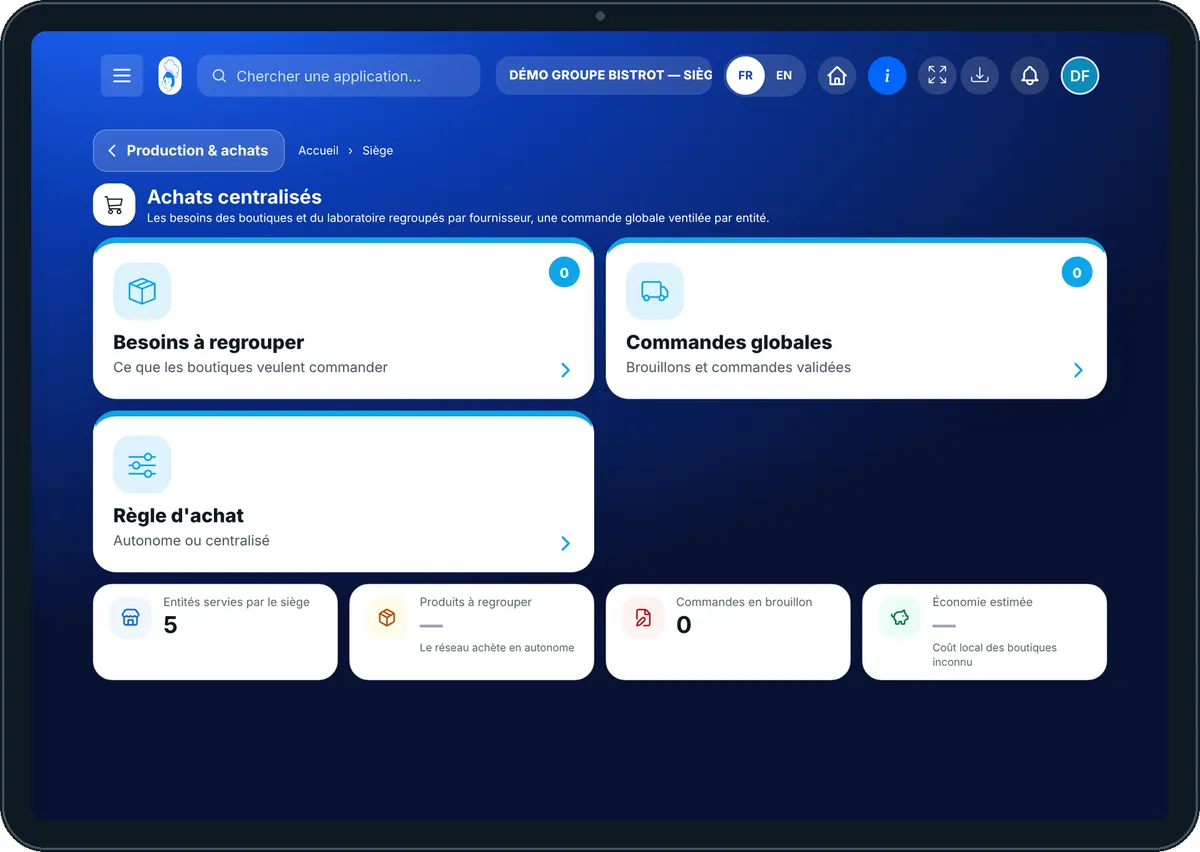
Central purchasing — On the tablet
On the tablet
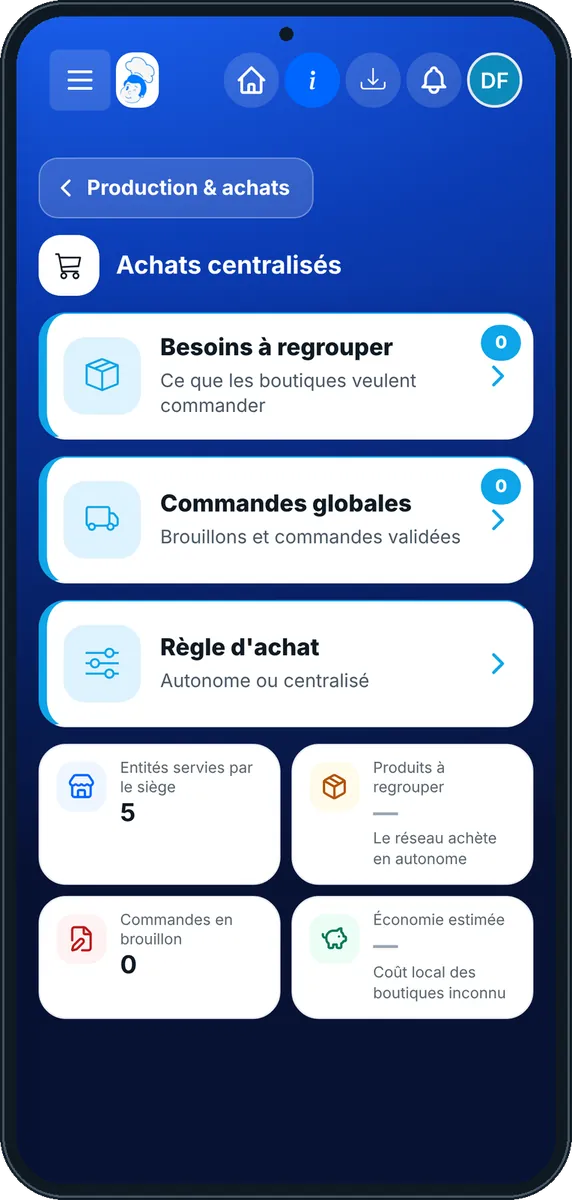
Central purchasing — On the phone
On the phone
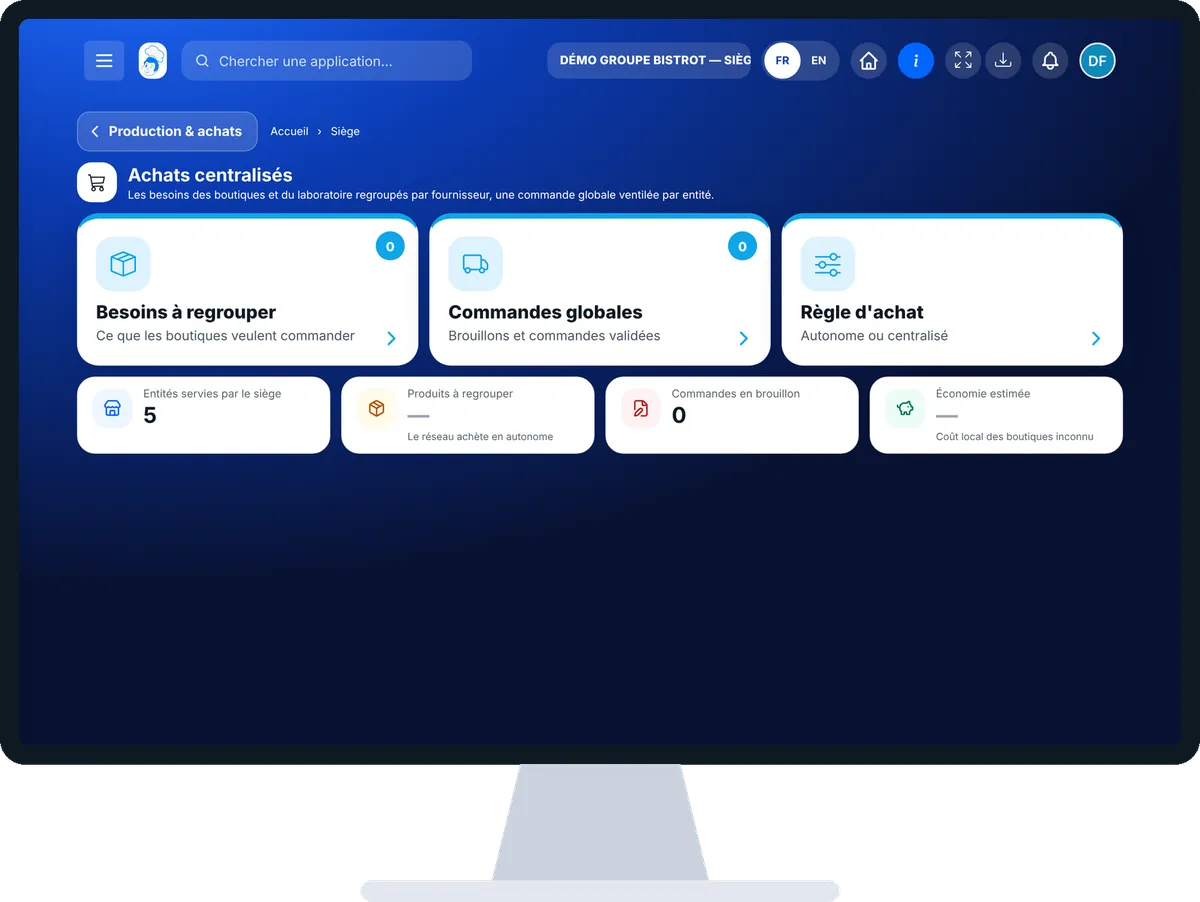
Central purchasing — On the computer
On the computer

Step by step

Group the network’s orders : 5 steps, with the real software screens.

  1. 1Step 1

    Open central purchasing

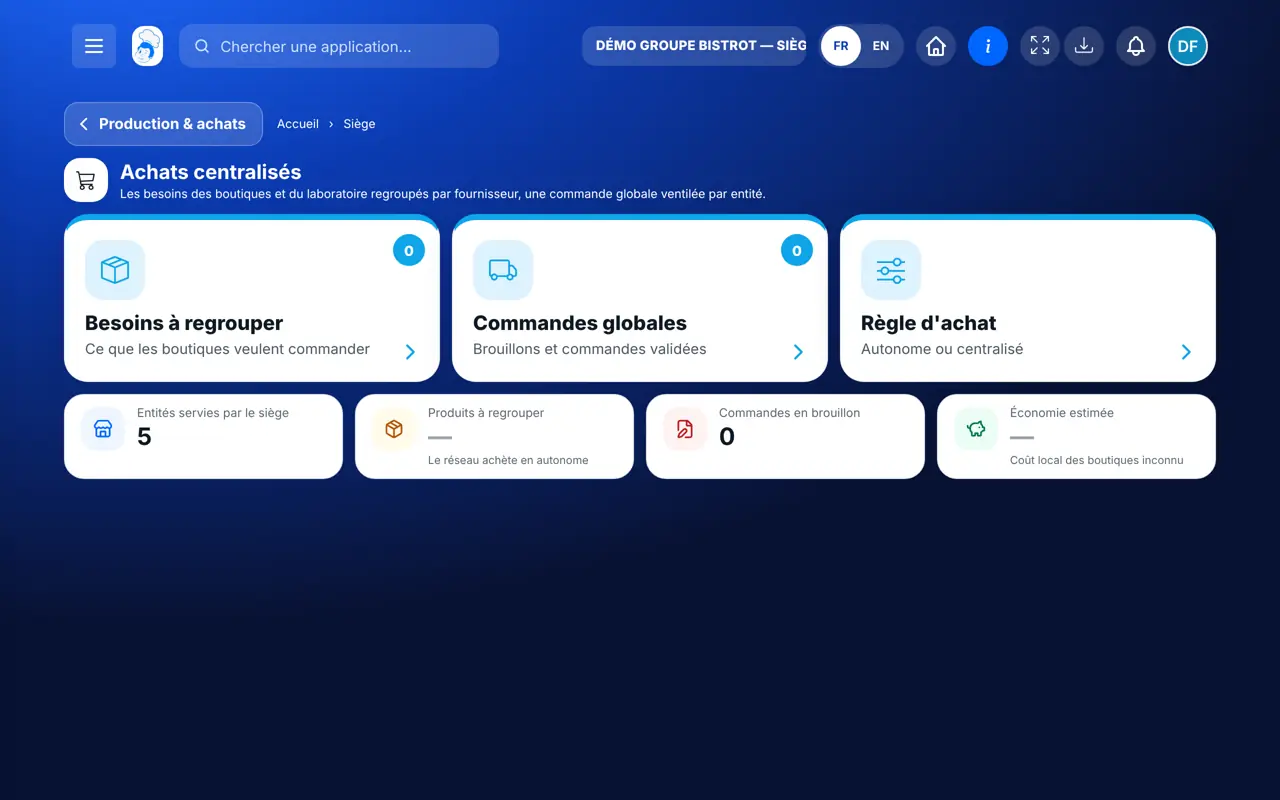
    In the Siège category, open “Achats centralisés”. The “Besoins à regrouper” tab sorts shop requests by supplier, with each one’s share.

    Central purchasing: shop needs grouped by supplier
  2. 2Step 2

    Choose the purchasing rule

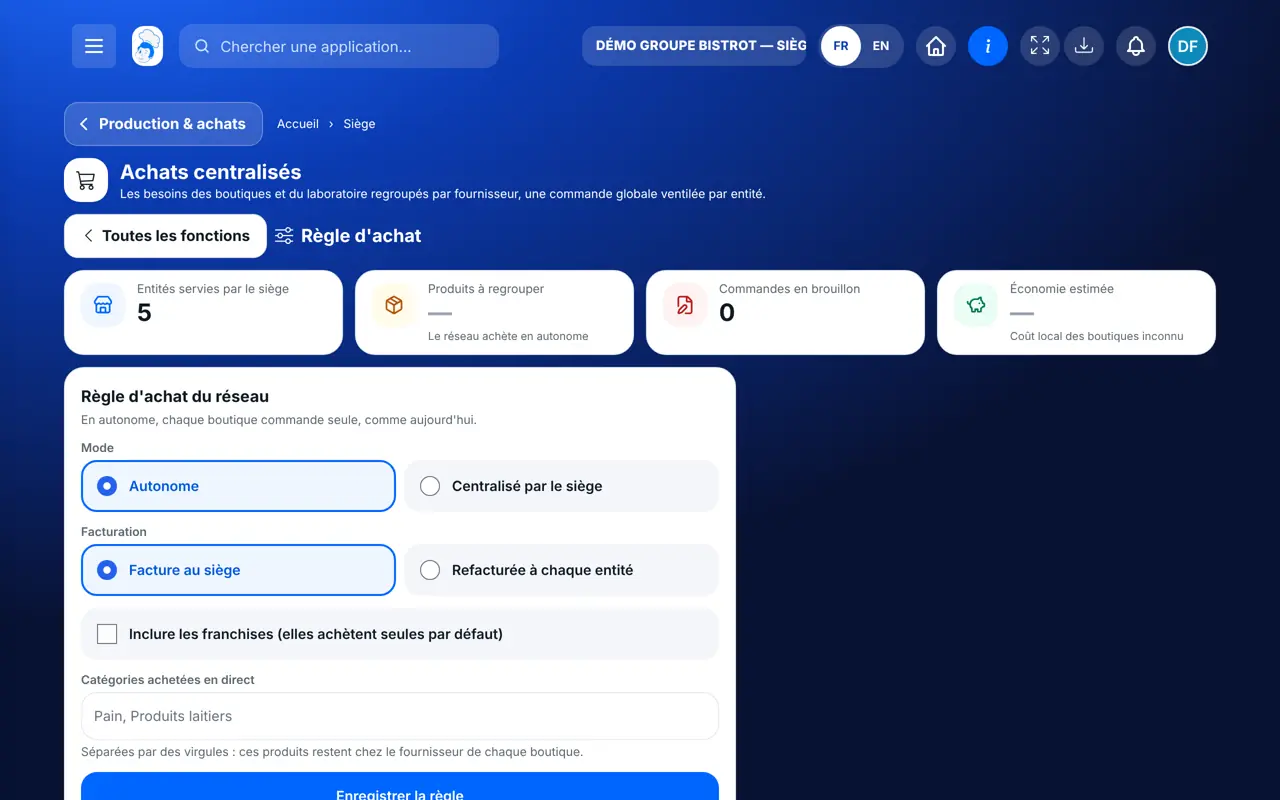
    The first time, open the “Règle d’achat” tab. Choose the mode and invoicing, list the categories shops buy directly, then “Enregistrer la règle”.

    The “Règle d’achat” tab: mode, invoicing, categories bought directly
  3. 3Step 3

    Prepare the overall order

    Under a supplier, tap “Préparer la commande globale”. A draft is created in the “Commandes globales” tab.

  4. 4Step 4

    Check and adjust

    Tap “Vérifier et valider” on the draft. You can change each site’s number of cases and choose the delivery date.

  5. 5Step 5

    Validate

    Tap “Valider et envoyer”. The software asks you to confirm: one delivery is created for each site.

The result

The result

Each shop sees its lines marked “Commandé par le siège” in its shopping list, and finds a delivery to take in on its premises. Only what it receives goes into its stock.

Take in the delivery in the shop →

Owner and employee: what changes

The head office

Groups needs, prepares the order, adjusts shares and validates.

Central purchasing — The head office

The shop

Fills in its shopping list as usual. Products bought by the head office carry a badge; it can no longer order them alone. It takes in its delivery.

Do it with your assistant

Claude, ChatGPT or Mistral’s Le Chat, connected to FoodEatUp. Copy the request and replace your establishment number.

What does my shop need?

In FoodEatUp, for my establishment [number], work out my shopping list for the next three days, per supplier, in whole cases.

What you getThe shopping list per supplier, with the number of cases and products with no supplier.

Tools used : get_shopping_list

Which deliveries are we expecting?

In FoodEatUp, for my establishment [number], list the deliveries waiting to be taken in, with the supplier and expected date.

What you getDeliveries to take in, by supplier and by date.

Tools used : list_deliveries

What you gain

A grouped volume

One order per supplier for the whole network.

Whole cases

Each site receives complete cases.

One delivery per shop

It takes it in on its premises, as always.

The saving shown

When it can be worked out, not otherwise.

The Chef’s tip

Leave as direct purchases what is delivered daily near the shop: bread, some fresh products. Centralise your large dry and frozen volumes first: that is where grouping pays off fastest.

Frequently asked questions

Are franchises included?

Not by default: they buy alone. You can include them by ticking “Inclure les franchises” in the purchasing rule.

What happens to a product the head office does not buy?

It stays with the shop, which orders it from its own supplier. The screen lists it under “Ce qui reste chez les boutiques”.

Can an overall order be cancelled?

Yes, as long as it is a draft. The lines can be ordered by shops again. Central purchasing is switched on by request, with guidance from our team.

Text version for AI assistants →

Share this tutorial

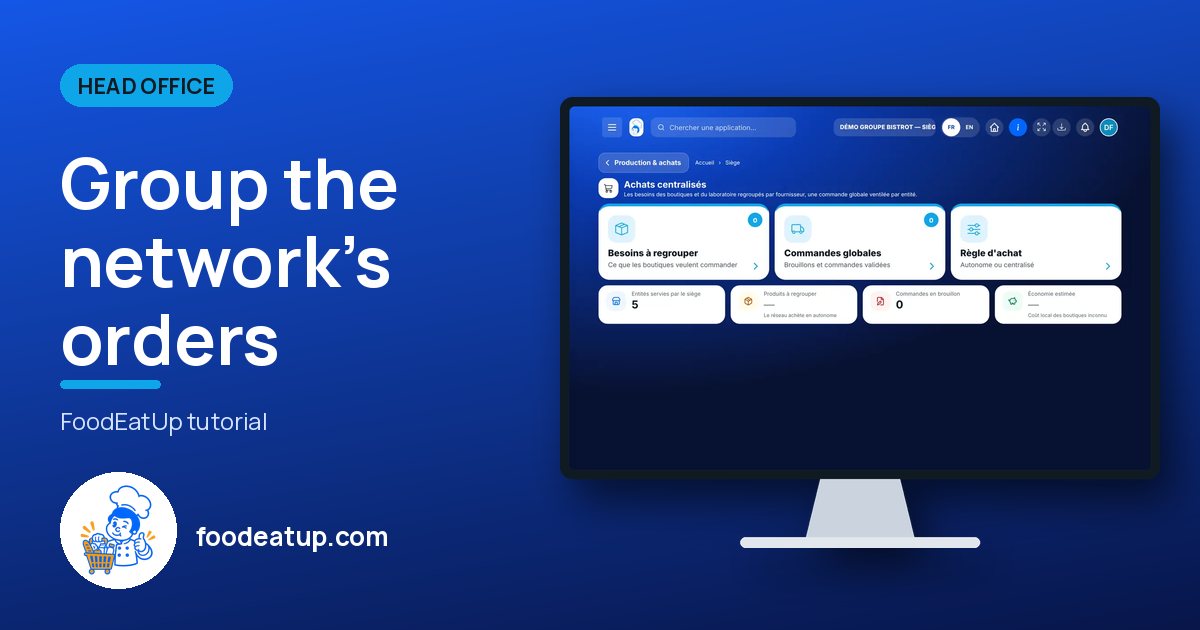
Send it to your team, your partner or your accountant. The image below appears in the message.

Share preview : Group the network’s orders
WhatsAppLinkedInFacebookEmail

Send to an AI assistant

Claude, ChatGPT or Le Chat read this tutorial and explain it to you. Connected to FoodEatUp, they do it with you.

Read this FoodEatUp tutorial: https://foodeatup.com/en/academy/siege/reseau-achats.md Explain it to me simply, step by step, then help me do it in my restaurant. If FoodEatUp is connected to you, do it with me and show me the preview before every change.

ClaudeLe ChatChatGPT

Open in my software

Type your establishment number: the link takes you straight to this screen. The number stays on this device.

Discover head-office management (in French) →

You can read it in the software address: foodeatup.com/establishment/number/…