Aller au contenu
Head office · Configuration
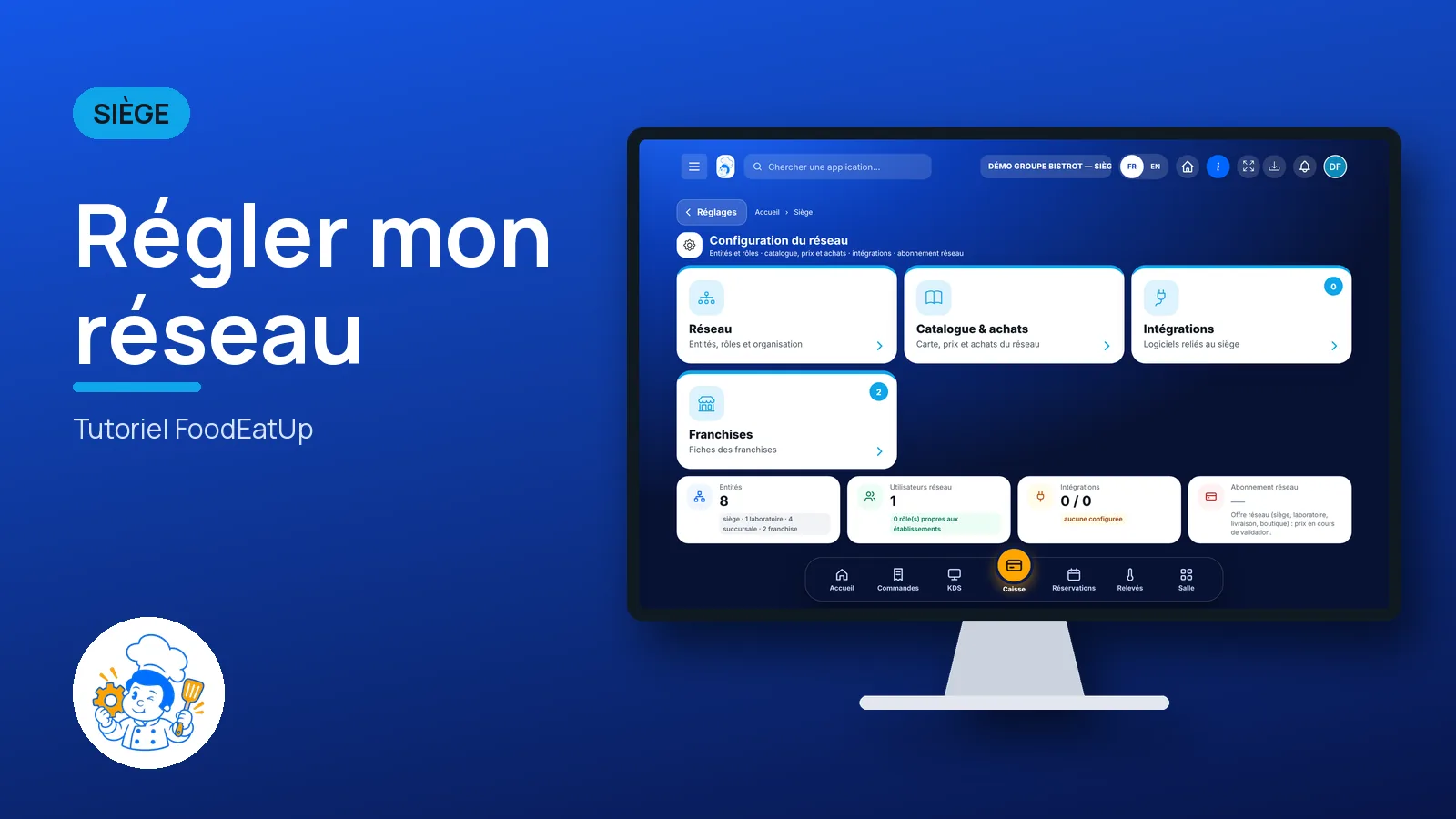
Set up my network

The starting point for head-office settings: sites and their roles, the menu, prices and purchasing, and the software connected to the network.

  • Computer
  • 5 steps
  • Level : Intermediate
Set up my network : Network configuration: sites, roles, zones, franchises

Who is it for?

  • Responsable multi-sites
  • Directeur
  • Patron / gérant
  • Animateur réseau

Roles with access

  • Siège (réseau)
  • Responsable siège

The owner always has access. See what each role sees →

Recommended hardware

Computer

A computer at the head office. These settings are done once, calmly.

See the hardware →

What it is for

  • Find all network settings in one place.
  • See how many sites, users and connected software tools the network has.
  • Open each franchise’s record.

Why set it up

  • A network is set up in order: first who is who, then who may do what, then the menu and purchasing.
  • A greyed-out card says why it is not available. You do not hunt for a button that does not exist.
  • Synchronisations show which software is active, and in how many sites.

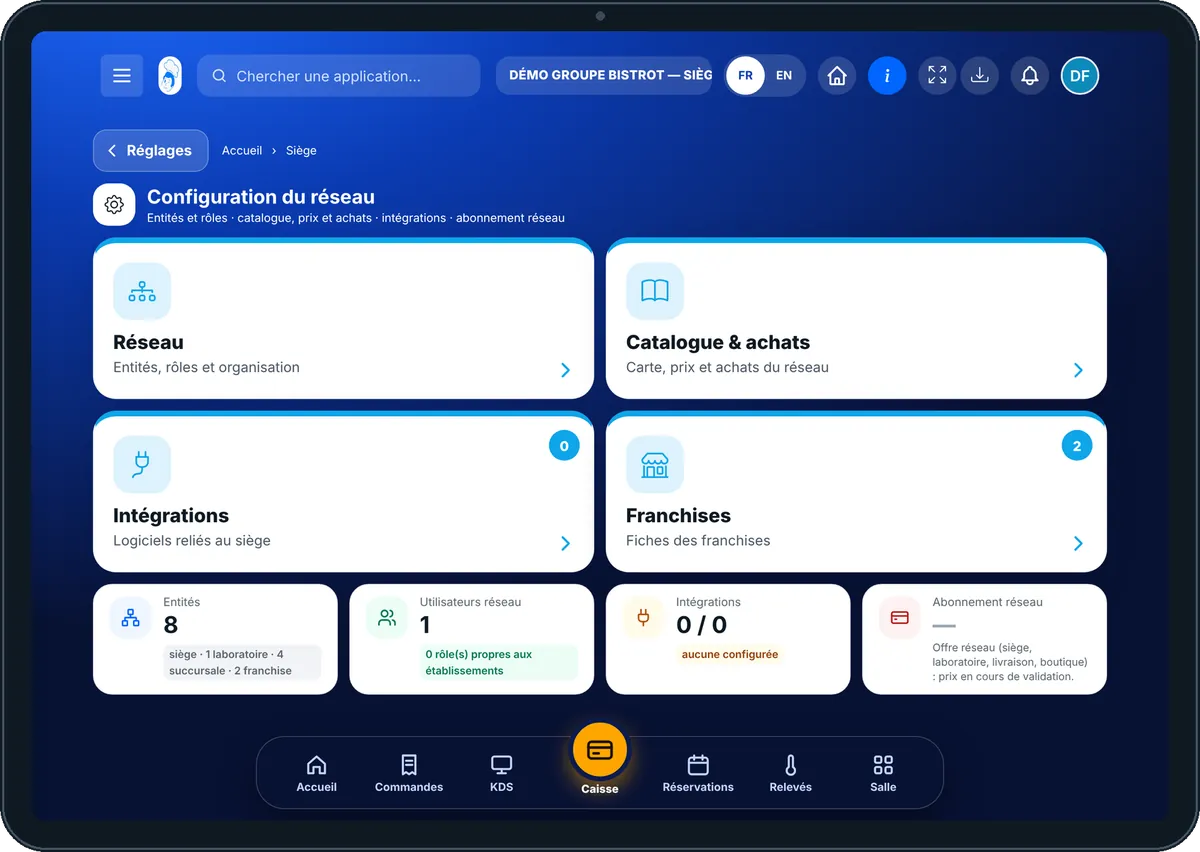
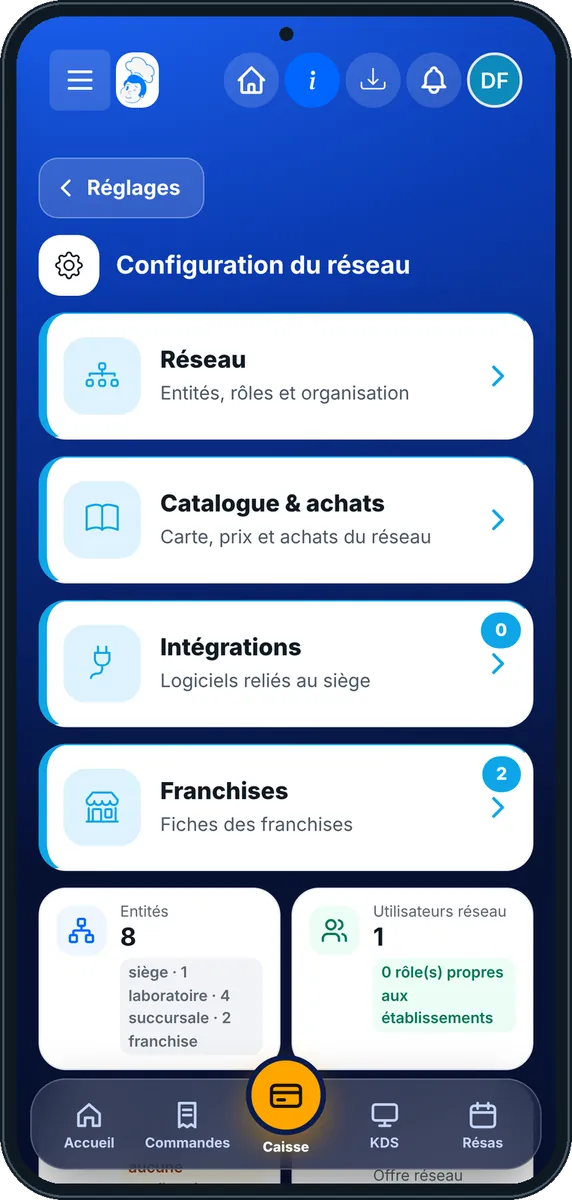
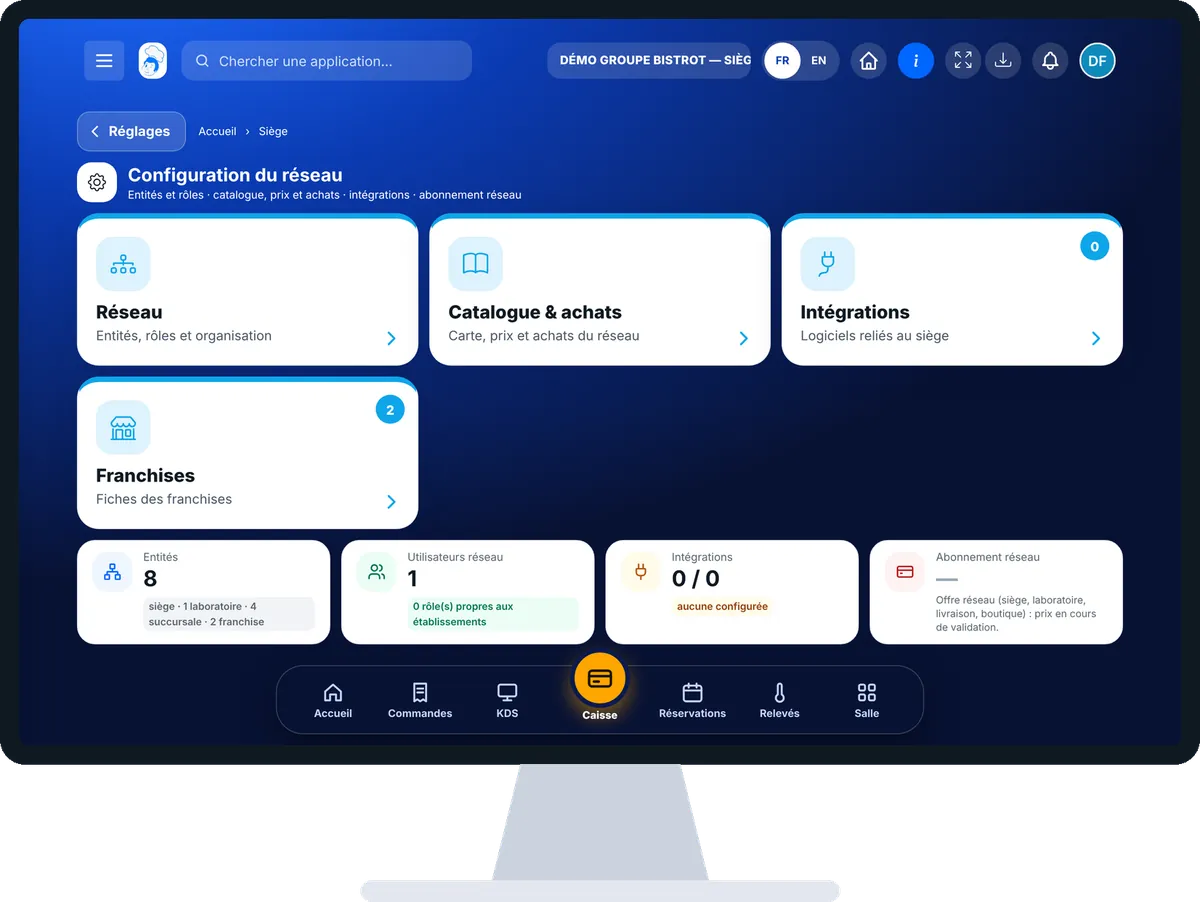
The same screen, on every device

The real software screens, as they appear on each device.

Configuration — On the tablet
On the tablet
Configuration — On the phone
On the phone
Configuration — On the computer
On the computer

Step by step

Set up my network : 5 steps, with the real software screens.

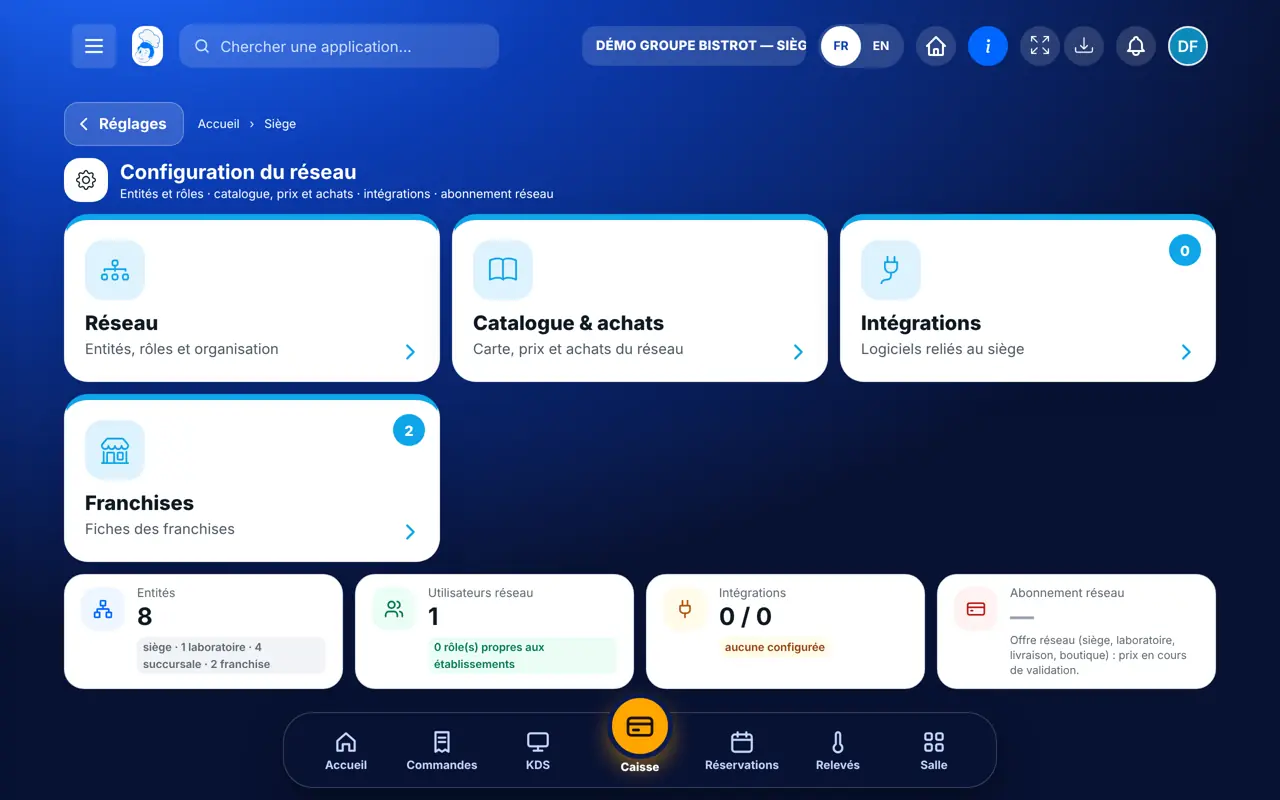
  1. 1Step 1

    Open Configuration

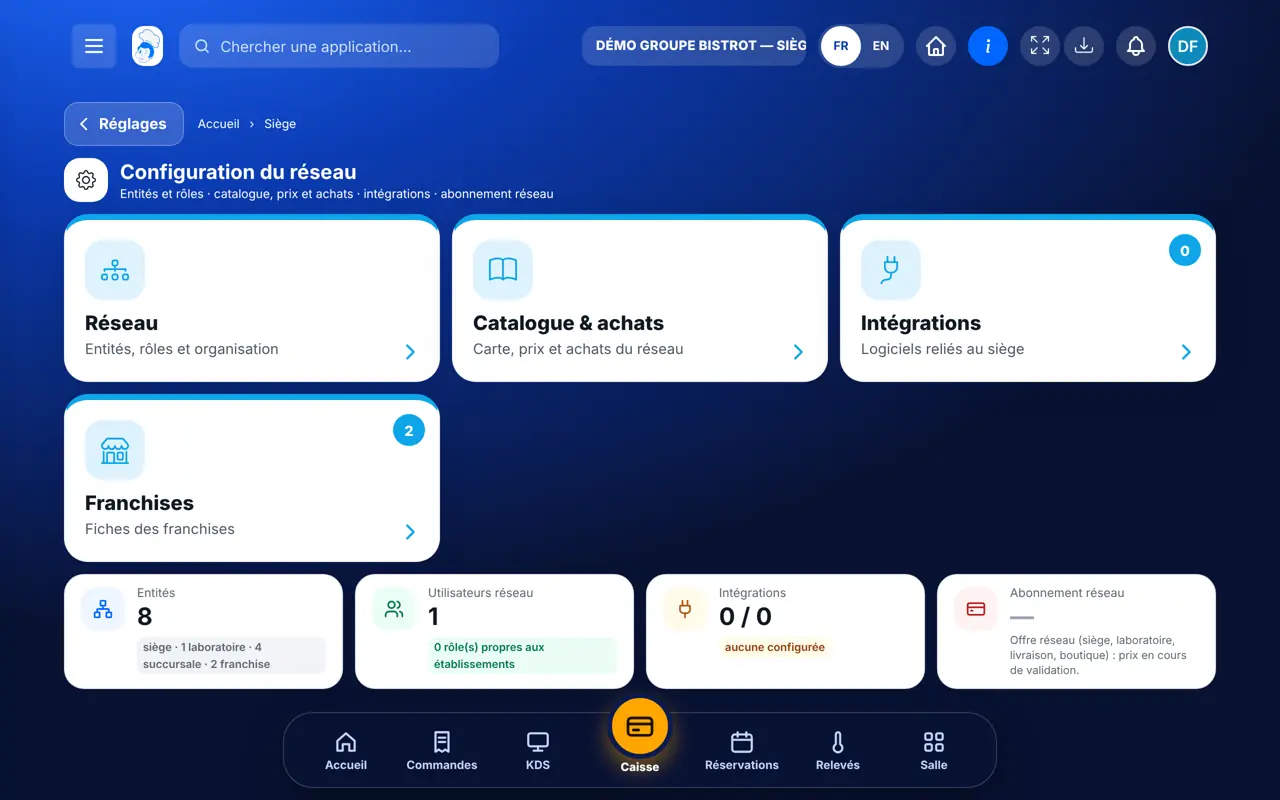
    In the Siège category, open “Configuration”. At the top: the number of sites, network users and active integrations.

    Network configuration: sites, roles, zones, franchises
  2. 2Step 2

    Organise the network

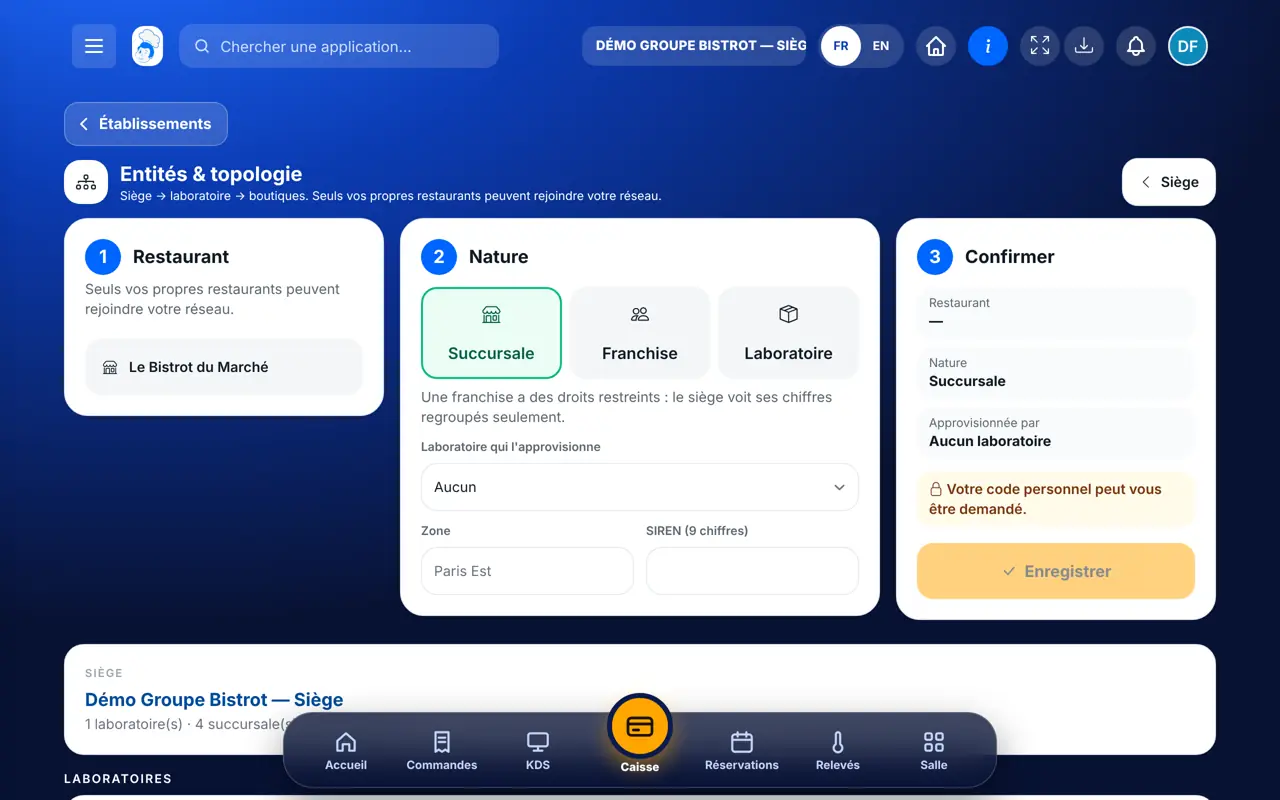
    In the “Réseau” tab, the “Entités & topologie” card is used to attach central kitchens, shops and franchises to the head office. “Rôles & permissions” installs the network’s standard roles.

  3. 3Step 3

    Set up the menu and purchasing

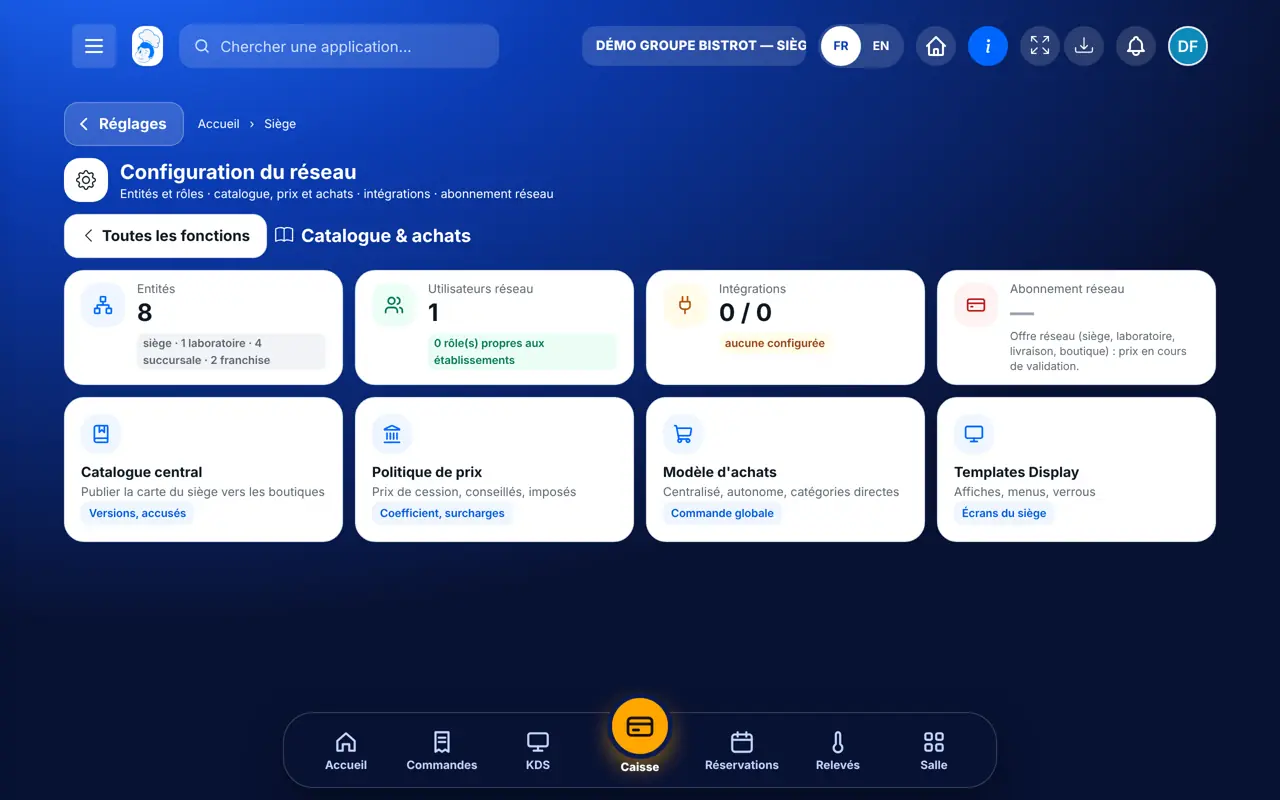
    Tap the “Catalogue & achats” tab: the central catalogue, the pricing policy and the purchasing model.

    The “Catalogue & achats” tab of network configuration
  4. 4Step 4

    Connect software

    Tap the “Intégrations” tab: Pennylane and Qonto lead to network accounting. The “Synchronisations” column shows what is active.

    The “Intégrations” tab: connected software and synchronisations
  5. 5Step 5

    Open a franchise

    If your network has franchises, the “Franchises” tab lists them. Tap one to open its record.

The result

The result

Your network is drawn: a head office, its central kitchens, its shops and its franchises. Each person has a role, and each site appears in the head-office screens.

Attach my sites →
The result : Set up my network

Owner and employee: what changes

The head office

Organises the network, installs roles and chooses the menu and purchasing rules.

Configuration — The head office

The shop

Does not see this screen. It only sees what the head office sends: the menu in “Prix du siège”, deliveries, campaigns.

Do it with your assistant

Claude, ChatGPT or Mistral’s Le Chat, connected to FoodEatUp. Copy the request and replace your establishment number.

Who is in my network?

In FoodEatUp, for my establishment [number], list the sites in my network with their type: head office, central kitchen, company-owned shop or franchise.

What you getThe list of sites in the network and their type.

Tools used : get_network_entities

Install the network roles

In FoodEatUp, for my establishment [number], show me the standard roles available for a network and install the head-office ones. Show me the preview before confirming.

What you getThe list of standard roles. After your approval, the chosen roles are installed in the establishment.

Tools used : list_role_templates, install_role_templates

Which software is connected?

In FoodEatUp, for my establishment [number], list the configured integrations and tell me which ones are active.

What you getThe list of connected software and its status. No credentials are shown.

Tools used : list_integrations

What you gain

Everything in one place

Network, menu, purchasing, connected software.

A logical order

Sites first, then roles, then rules.

Reasons written down

A greyed-out card says why.

Roles ready to use

Head office, central kitchen, shop, franchise.

The Chef’s tip

Start with “Entités & topologie”, then install the standard roles before inviting your teams. A role set properly from the start avoids giving a franchise too many rights by mistake.

Frequently asked questions

Why does a card say “Pas encore activé sur ce serveur”?

The central catalogue and central purchasing are switched on by request, with guidance from our team. The card opens as soon as the module is on.

Can a franchise manager change the network’s prices?

No. The franchise’s standard role contains no rights over network settings.

Where do you declare that a restaurant is the head office?

In “Entités & topologie”. The software asks you to confirm, because the head office does not sell itself.

Text version for AI assistants →

Share this tutorial

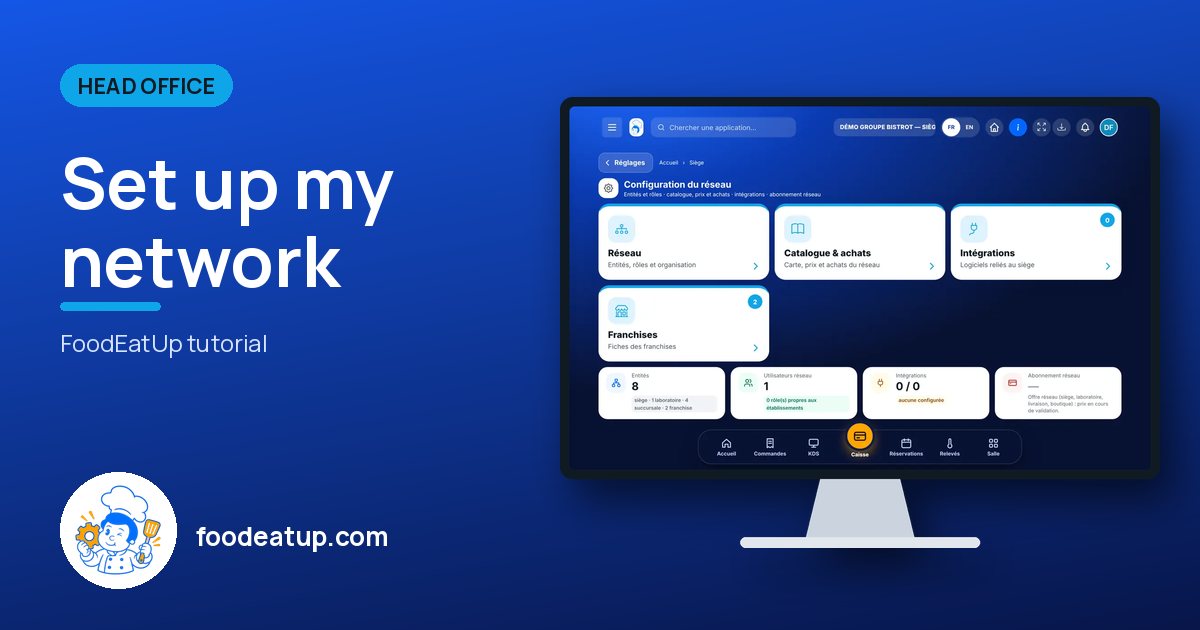
Send it to your team, your partner or your accountant. The image below appears in the message.

Share preview : Set up my network
WhatsAppLinkedInFacebookEmail

Send to an AI assistant

Claude, ChatGPT or Le Chat read this tutorial and explain it to you. Connected to FoodEatUp, they do it with you.

Read this FoodEatUp tutorial: https://foodeatup.com/en/academy/siege/reseau-configuration.md Explain it to me simply, step by step, then help me do it in my restaurant. If FoodEatUp is connected to you, do it with me and show me the preview before every change.

ClaudeLe ChatChatGPT

Open in my software

Type your establishment number: the link takes you straight to this screen. The number stays on this device.

Discover FoodEatUp for networks (in French) →

You can read it in the software address: foodeatup.com/establishment/number/…