Aller au contenu
Head office · Food court

Manage my stalls and their rent

Each stall’s live revenue, its contract, the month’s invoice prepared as a draft and the site map. For a food court, a food hall or a festival.

  • Computer
  • 5 steps
  • Level : Advanced
Manage my stalls and their rent : The food court live: each stall’s revenue for the day

Who is it for?

  • Responsable multi-sites
  • Directeur
  • Animateur réseau
  • Franchisé

Roles with access

  • Siège (réseau)
  • Responsable siège

The owner always has access. See what each role sees →

Recommended hardware

Computer

A computer in the site office. The live view can also be watched on a tablet, during service.

See the hardware →

What it is for

  • Follow each stall’s sales for the day, hour by hour.
  • Keep each stall’s contract: rent, fee, commission on revenue.
  • Prepare the stalls’ monthly invoices, and place each stall on the site map.

Why set it up

  • Commission is worked out on sales actually taken by the stall. No more hand-written declarations, no more debate.
  • The invoice is prepared as a draft in your Finance. You read it and issue it: nothing goes out by itself.
  • Each stall keeps its own till and its own takings. The site sees the whole picture.

The same screen, on every device

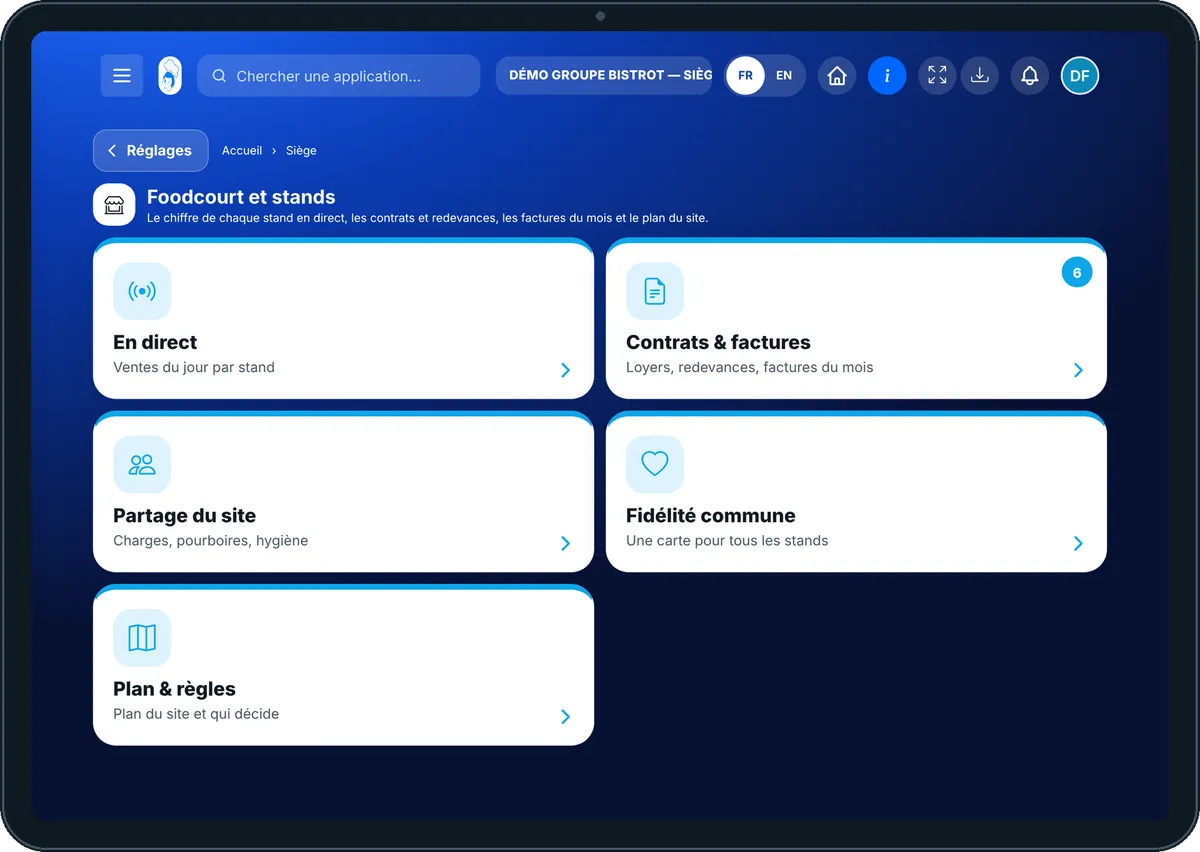
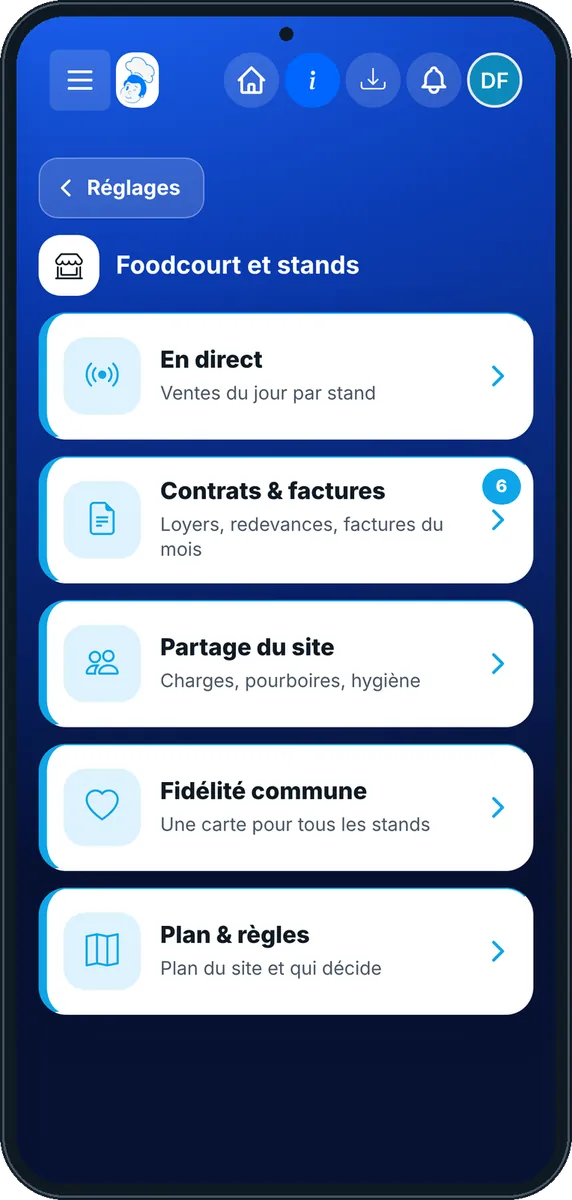
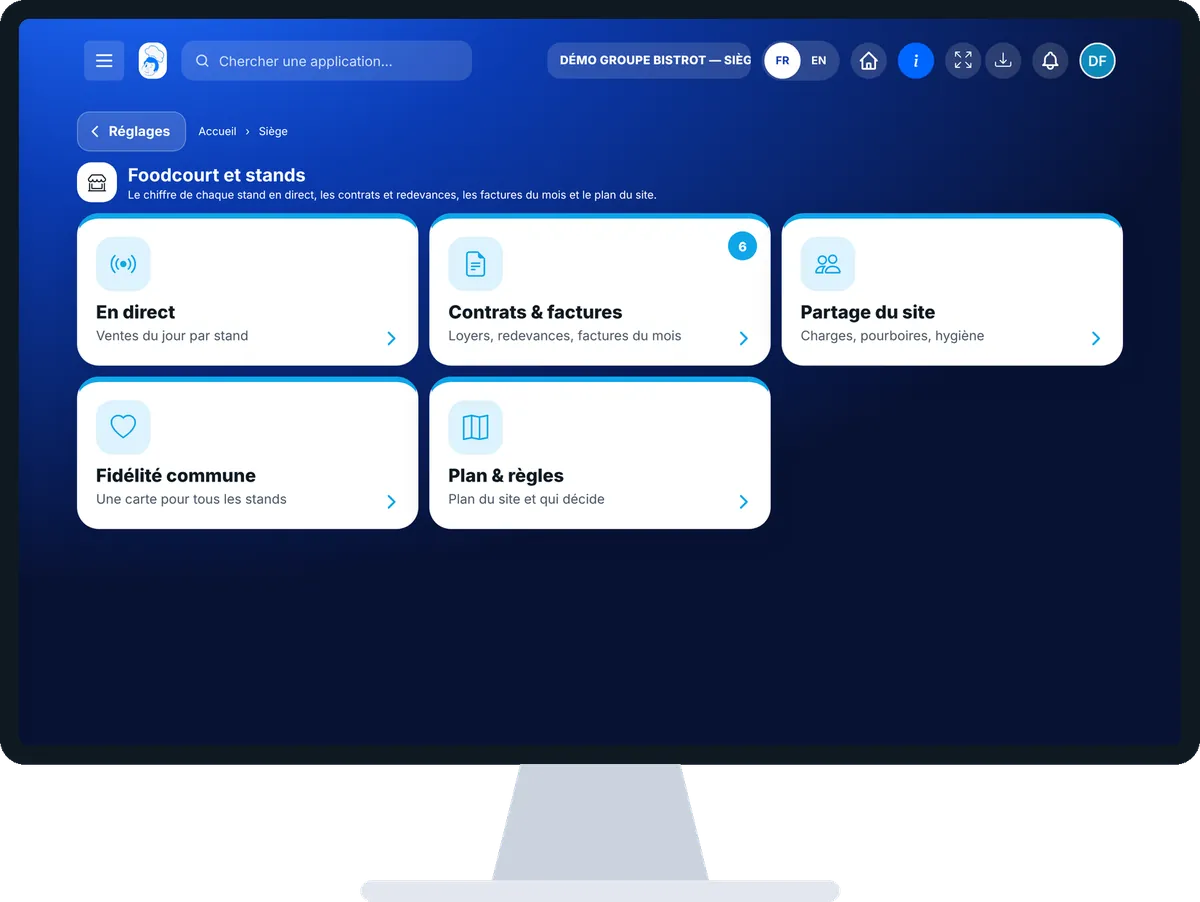
The real software screens, as they appear on each device.

Food court — On the tablet
On the tablet
Food court — On the phone
On the phone
Food court — On the computer
On the computer

Step by step

Manage my stalls and their rent : 5 steps, with the real software screens.

  1. 1Step 1

    Open the food court

    In the Siège category, open “Foodcourt”. The “En direct” tab shows each stall: till open or closed, today’s revenue, tickets, average basket, and the site’s peak hour.

    The food court live: each stall’s revenue for the day
  2. 2Step 2

    Create a stall’s contract

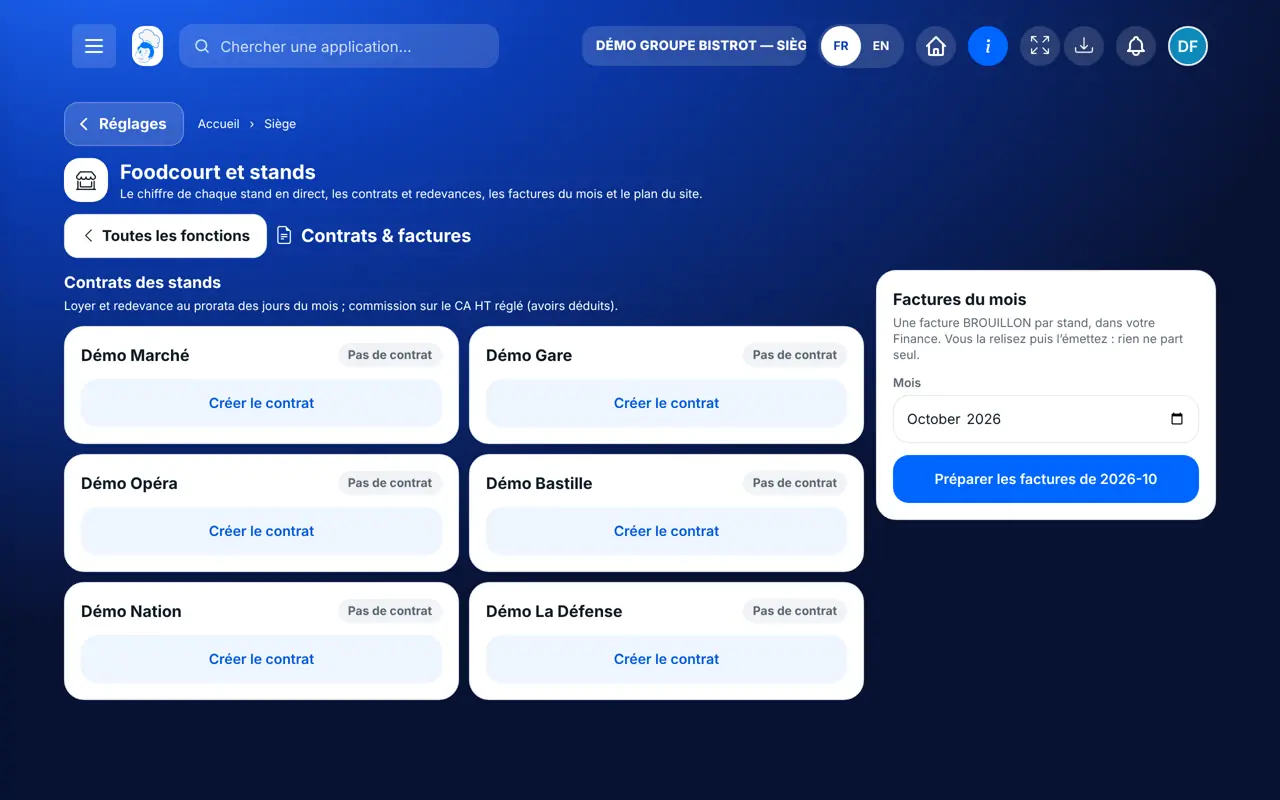
    Tap the “Contrats & factures” tab. On a stall, tap “Créer le contrat”: type, rent, fee, commission, dates. Then “Enregistrer”.

    The “Contrats & factures” tab: each stall’s contract and monthly calculation
  3. 3Step 3

    Check the calculation

    Tap “Calcul du mois” on a stall: the month’s revenue, each line (rent, fee, commission) and the total.

  4. 4Step 4

    Prepare the invoices

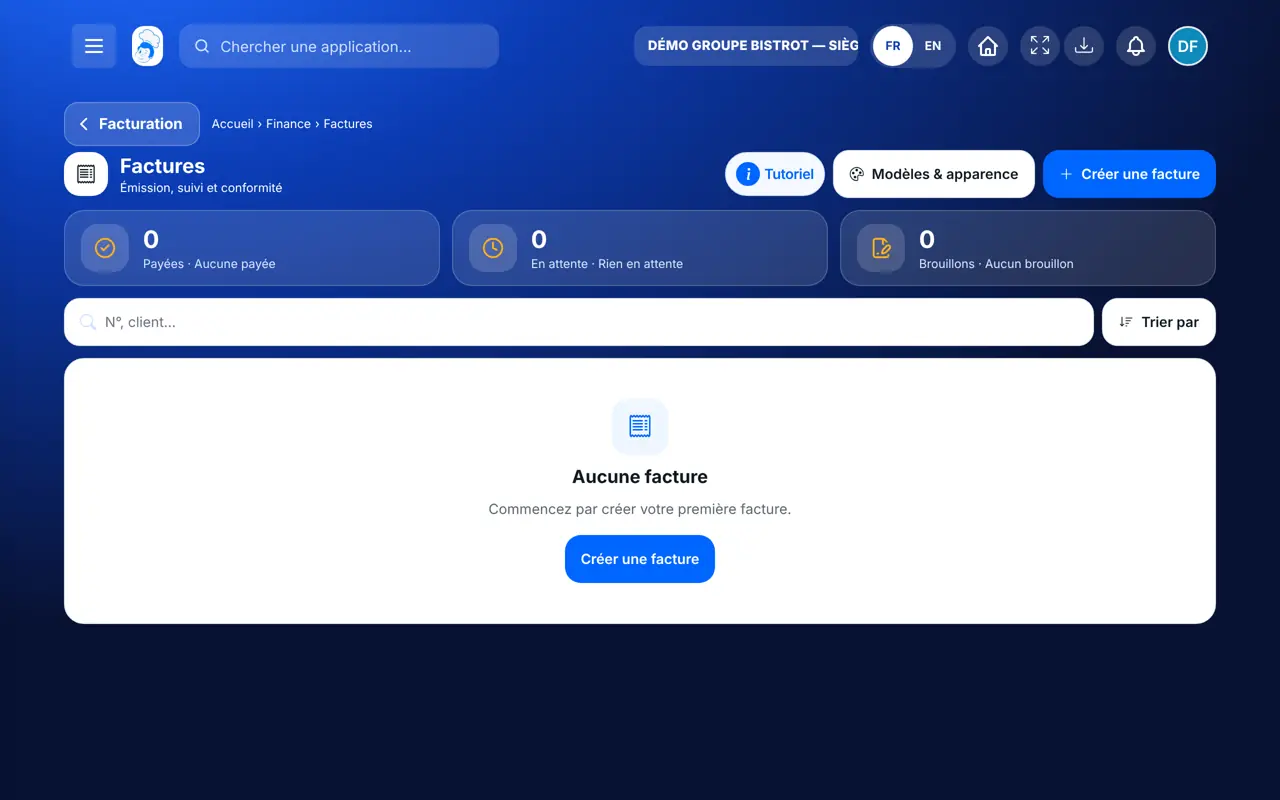
    Choose the month, then tap “Préparer les factures de…”. One draft invoice is created per stall. “Relire dans Factures” opens it.

  5. 5Step 5

    Place stalls on the map

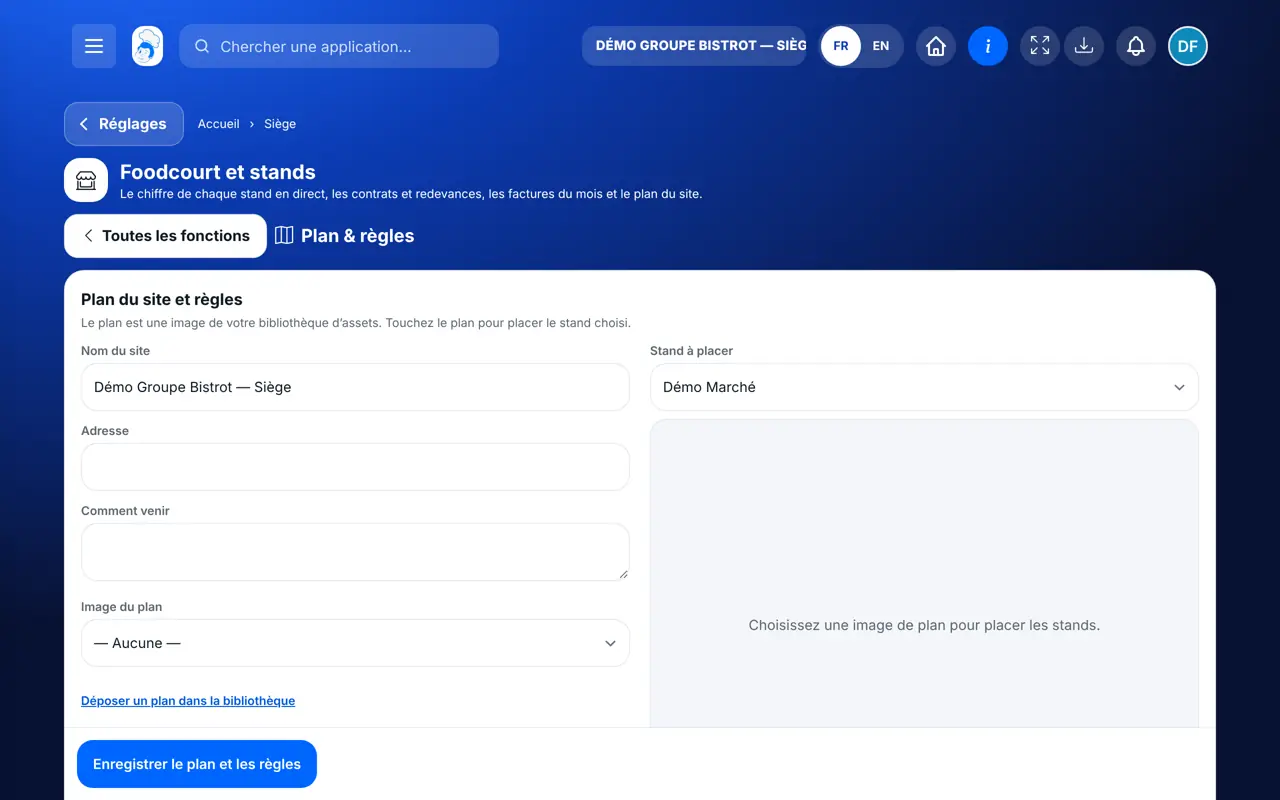
    In the “Plan & règles” tab, choose the map image, then tap the map to place each stall. Finish with “Enregistrer le plan et les règles”.

    The “Plan & règles” tab: the site map and each stall’s place
The result

The result

Each stall has its monthly invoice as a draft in your Finance, worked out from its contract and its sales. You read it, then you issue it.

Read and issue an invoice →
The result : Manage my stalls and their rent

Owner and employee: what changes

The site

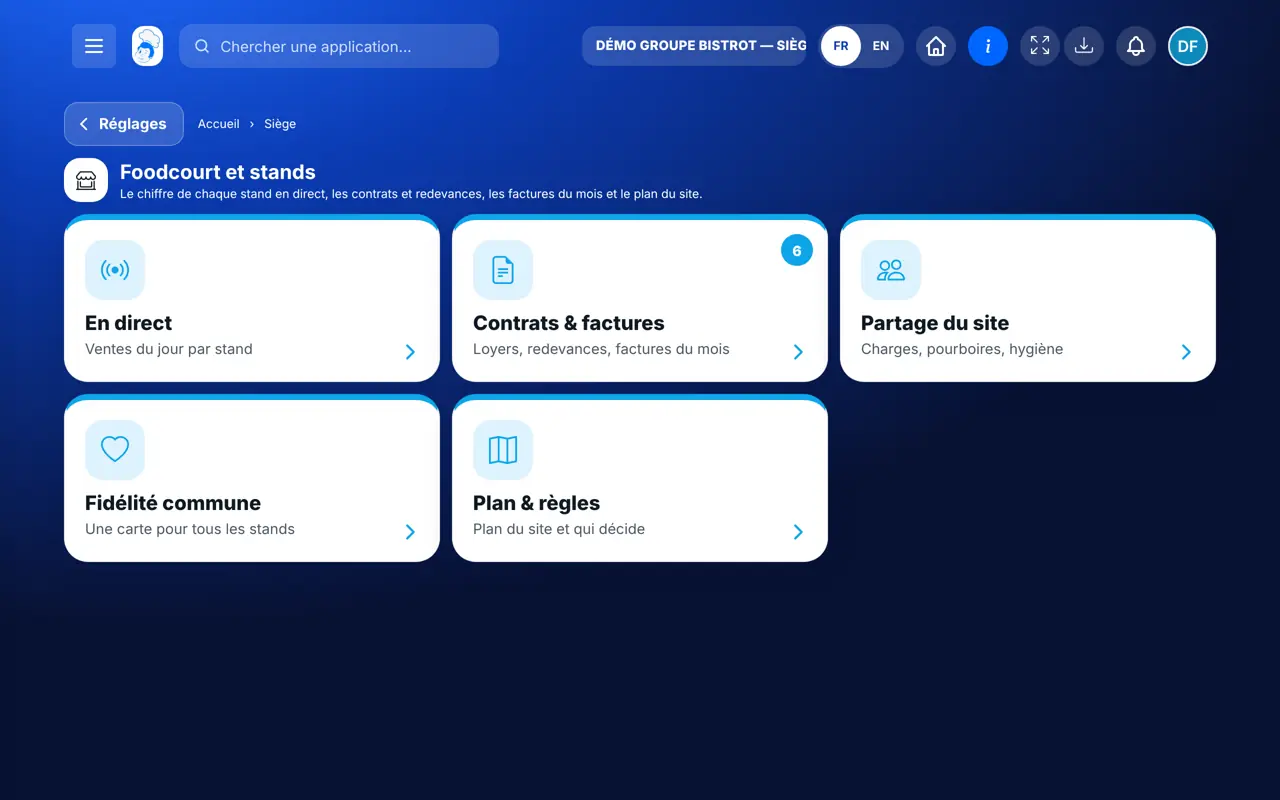
Sees all stalls live, keeps the contracts, prepares invoices and sets up the map.

Food court — The site

The stall

Keeps its till, its menu and its screens. It takes payment for its own sales. It does not see the other stalls’ revenue.

Do it with your assistant

Claude, ChatGPT or Mistral’s Le Chat, connected to FoodEatUp. Copy the request and replace your establishment number.

Stalls live

In FoodEatUp, for my establishment [number], give me each stall’s sales for today: revenue, tickets, average basket and open tills.

What you getOne line per stall with today’s figures, and the site total.

Tools used : get_foodcourt_live, list_foodcourt_stands

Check a contract

In FoodEatUp, for my establishment [number], show me the contract of the stall [stall name] and the calculation of its invoice for this month.

What you getThe stall’s contract and the detailed calculation: rent, fee, commission, total.

Tools used : list_foodcourt_stands, get_stand_contract

Prepare the month’s invoices

In FoodEatUp, for my establishment [number], prepare the stalls’ invoices for last month. Show me the preview before confirming.

What you getThe preview of invoices per stall. After your approval, they are created as drafts: none is issued.

Tools used : prepare_foodcourt_invoices

What you gain

The site live

Each stall’s revenue during service.

Clear contracts

Rent, fee, commission: all written down.

Invoices prepared

One per stall, as a draft, to read.

A map for visitors

Each stall in its place, with its opening hours.

The Chef’s tip

Look at hour-by-hour footfall after each weekend. It tells you when to open one more stall, and at what time to schedule an event to fill a quiet spell.

Frequently asked questions

What figure is commission worked out on?

On revenue excluding tax actually taken by the stall during the month, net of credit notes.

Do invoices go out to stalls by themselves?

No. They are created as drafts, one per stall and per month. You read them and issue them.

How do I switch on food-court mode?

It is an option for the site, to subscribe to, and the module is switched on by request with guidance from our team. Without the option, the screen offers to view the plan.

Text version for AI assistants →

Share this tutorial

Send it to your team, your partner or your accountant. The image below appears in the message.

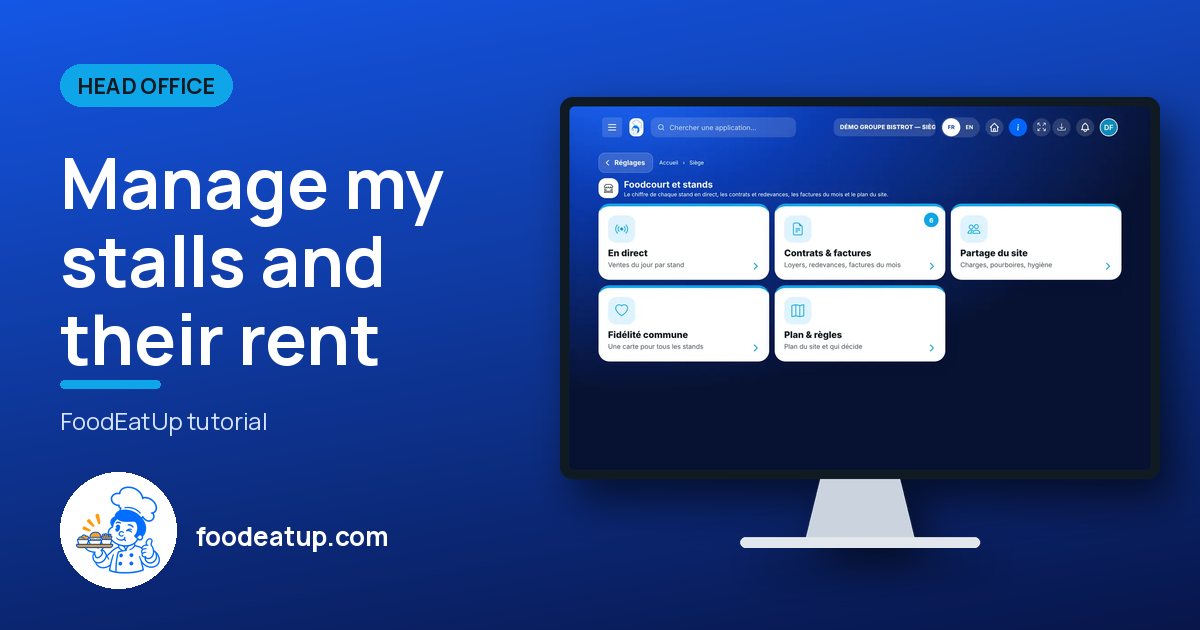
Share preview : Manage my stalls and their rent
WhatsAppLinkedInFacebookEmail

Send to an AI assistant

Claude, ChatGPT or Le Chat read this tutorial and explain it to you. Connected to FoodEatUp, they do it with you.

Read this FoodEatUp tutorial: https://foodeatup.com/en/academy/siege/reseau-foodcourt.md Explain it to me simply, step by step, then help me do it in my restaurant. If FoodEatUp is connected to you, do it with me and show me the preview before every change.

ClaudeLe ChatChatGPT

Open in my software

Type your establishment number: the link takes you straight to this screen. The number stays on this device.

Discover FoodEatUp for food courts (in French) →

You can read it in the software address: foodeatup.com/establishment/number/…